Having notes is one thing. Being able to ask an AI questions and get answers grounded in those notes is another. That is the basic idea behind a RAG knowledge base: the system retrieves relevant material from your own files and hands it to a language model, which then answers in a conversational way. Cherry Studio puts this within reach. With Ollama handling a local embedding model and a DeepSeek API key from a free-tier platform, you can build a personal AI knowledge base without any specialist background. A normal computer is enough because the large language model runs through an API rather than on your machine.
Once it is set up, the AI searches the knowledge base and uses what it finds to answer your question.
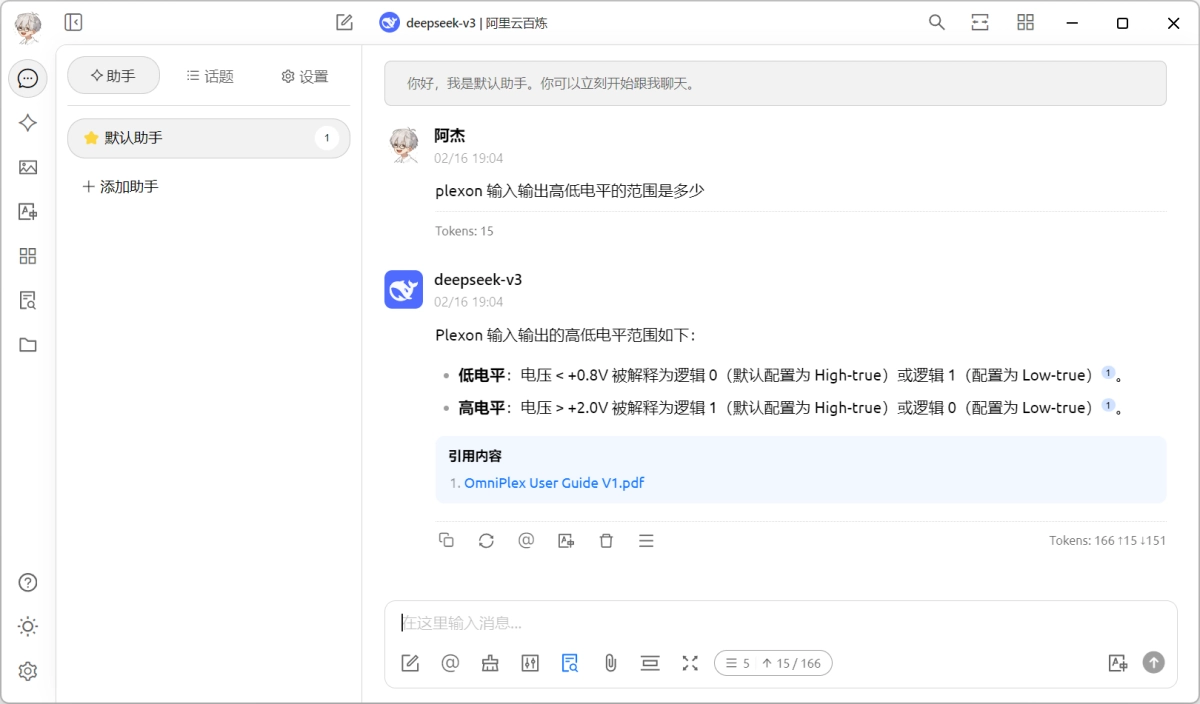
The two models you actually need
You do not need to understand the internals to get this working. In practice, an embedding model preprocesses the material you put into the knowledge base, and a language model produces the final answer. The quality of both models affects the result. So the preparation comes down to two pieces: an embedding model and a language model.
What to prepare
- Cherry Studio (cherry-ai.com): the desktop app you will use directly.
- Ollama: install the
bge-m3text embedding model through Ollama. This model preprocesses the material you add to the knowledge base. - A DeepSeek API key: free tokens are available from platforms such as the DeepSeek official site, Alibaba Cloud Bailian, Tencent Cloud, and Volcano Engine. You can call the full DeepSeek model through the API, so there is no need to deploy a large model locally.
Because only one desktop app and one embedding model are installed locally, the setup does not demand a high-end machine. An ordinary computer should be able to handle it.
Step by step
1. Install Cherry Studio
Download the free Cherry Studio app from its official site and install it.
2. Install Ollama
Download and install Ollama from ollama.com. It will be used to install the embedding model that preprocesses your knowledge base files.
3. Pull the embedding model
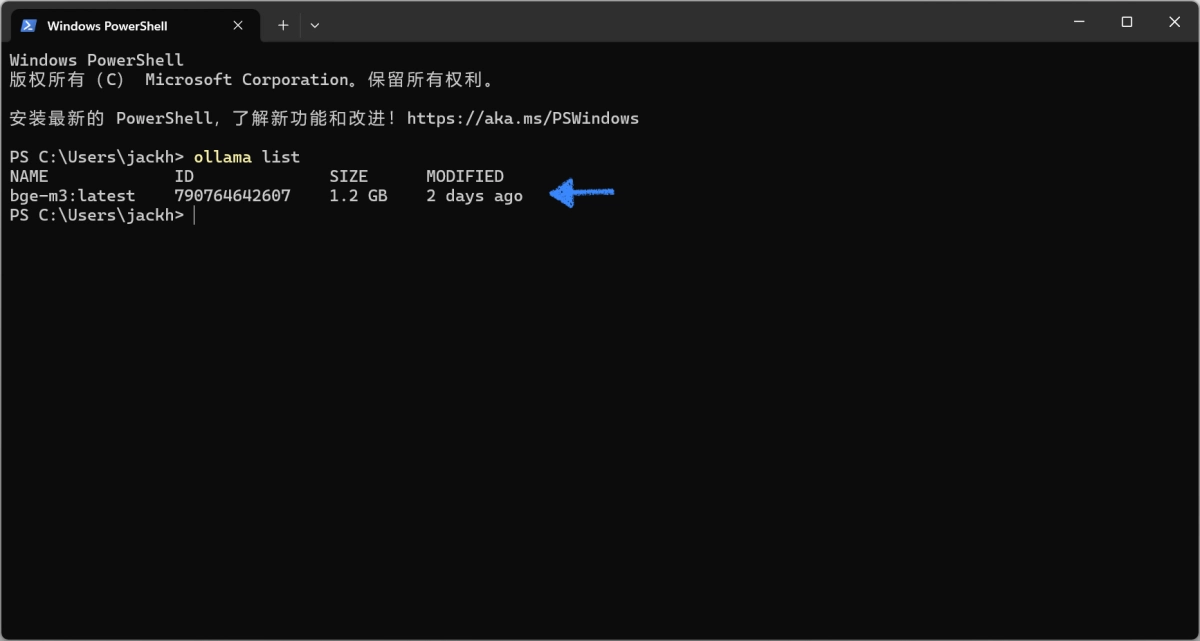
Open a terminal. On a Mac, search for Terminal; on Windows, search for Terminal as well. Then run:
ollama pull bge-m3
Wait for the download and installation to finish. After that, run:
ollama list
You should see the model you just installed.
4. Get a free DeepSeek key
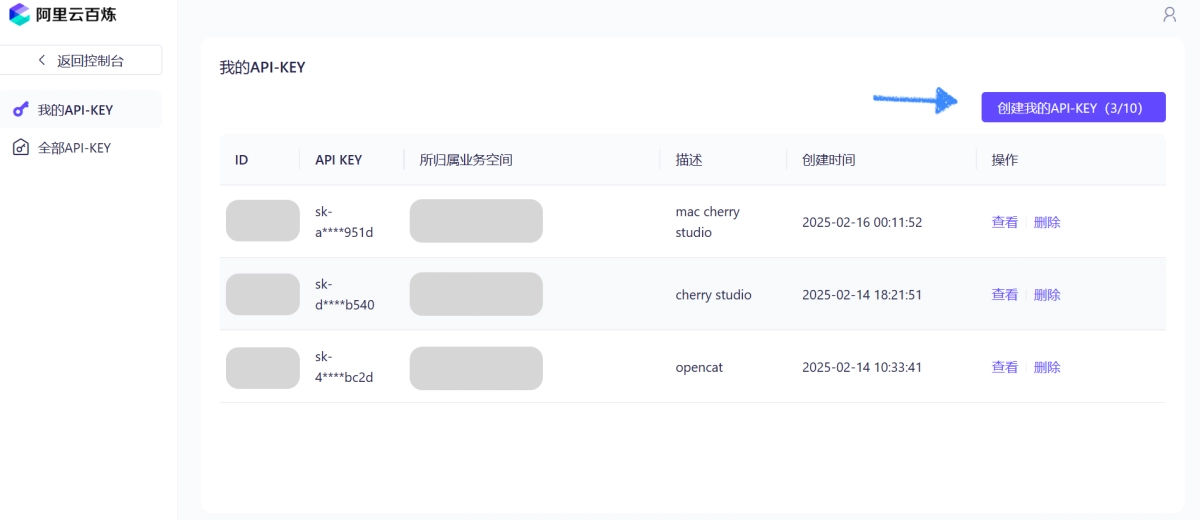
Choose one of the platforms that offers free DeepSeek usage. Alibaba Cloud Bailian, Tencent Cloud, and Volcano Engine are all worth checking. This example uses Alibaba Cloud Bailian.
Sign in to Alibaba Cloud Bailian. On first login, you will need to complete real-name verification. Once you are in the console, click Create My API-KEY in the upper-right corner and generate a key. At this point, all the necessary pieces are ready.
5. Configure the embedding model
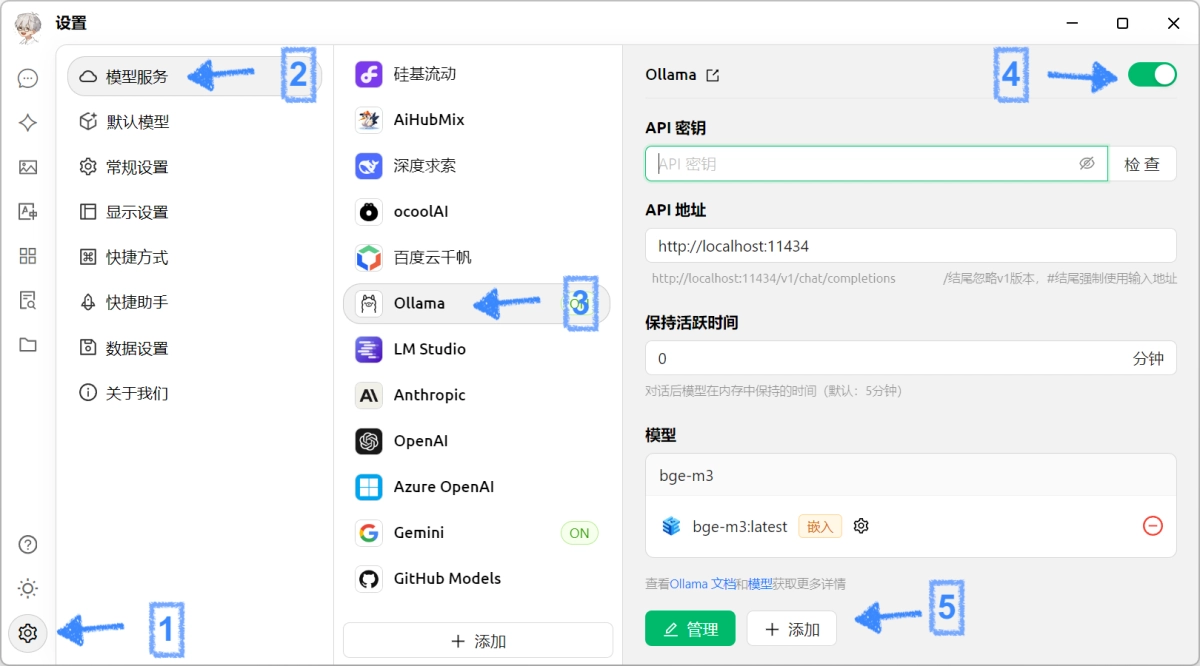
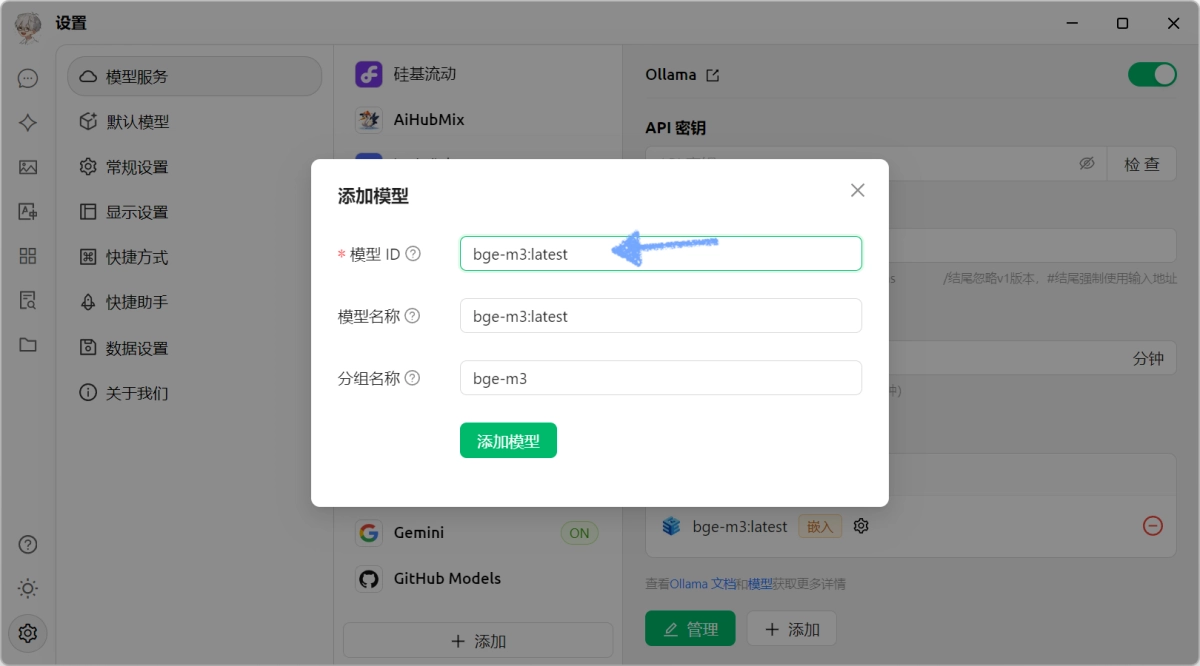
Open Cherry Studio and click the Settings icon in the lower-left corner. Choose Model Services, then select Ollama from the list. Turn on the switch in the upper-right corner. Leave the API key field blank. Under Models, click Add and enter bge-m3:latest in the Model ID field.
6. Configure the language model
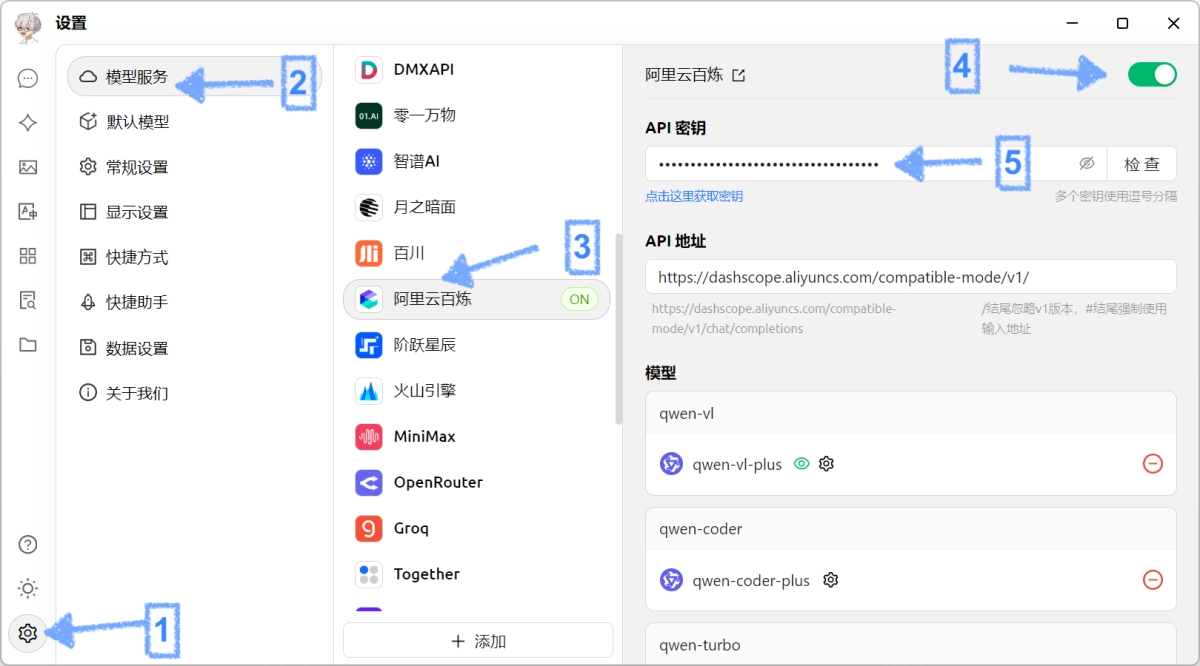
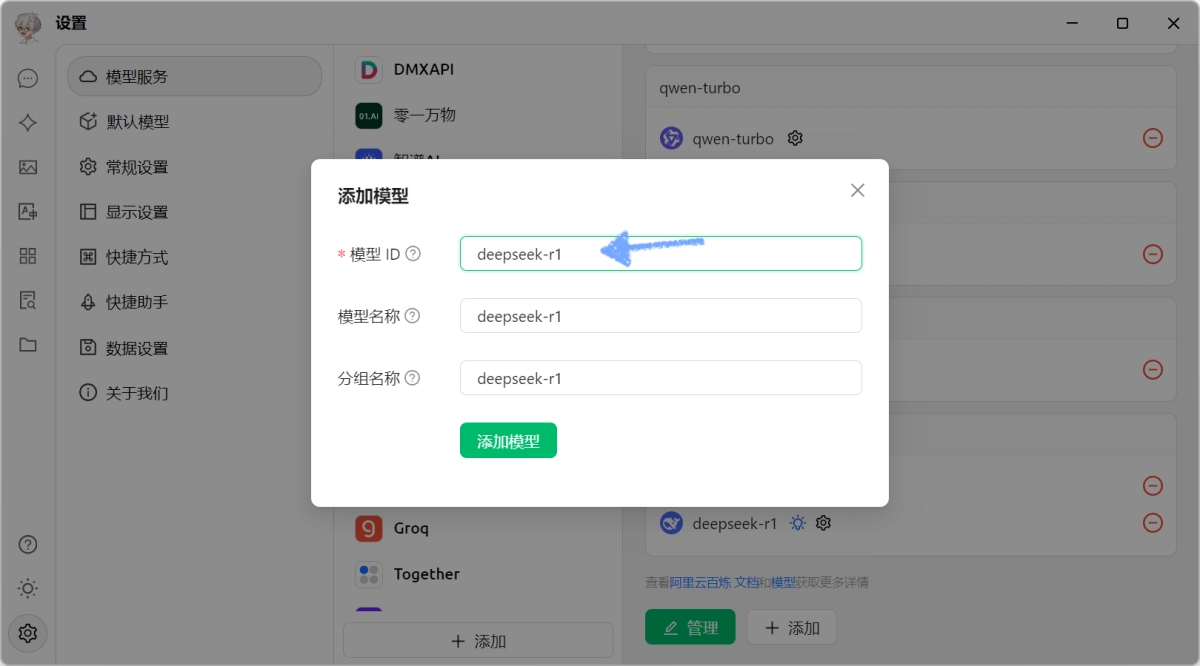
Still in Settings, go to Model Services and select Alibaba Cloud Bailian from the list. Turn on the switch in the upper-right corner, then paste the API key you generated in the console into the API key field. Under Models, click Add and enter deepseek-r1 in the Model ID field. You can add other models as well if you need them.
7. Create a knowledge base
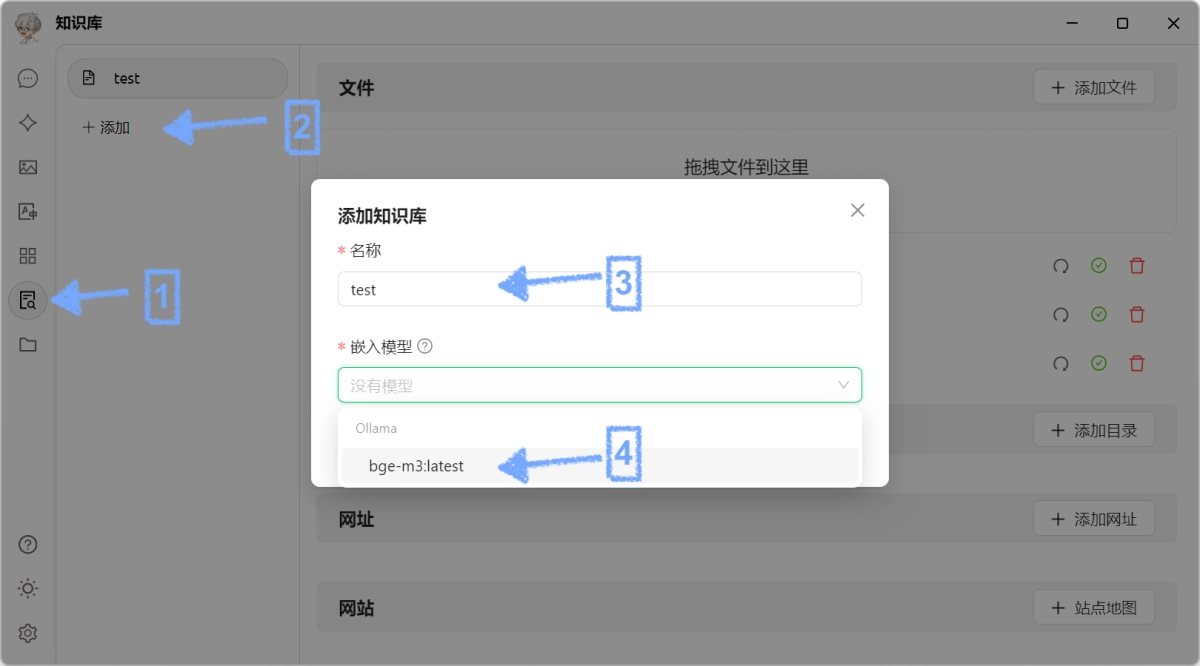
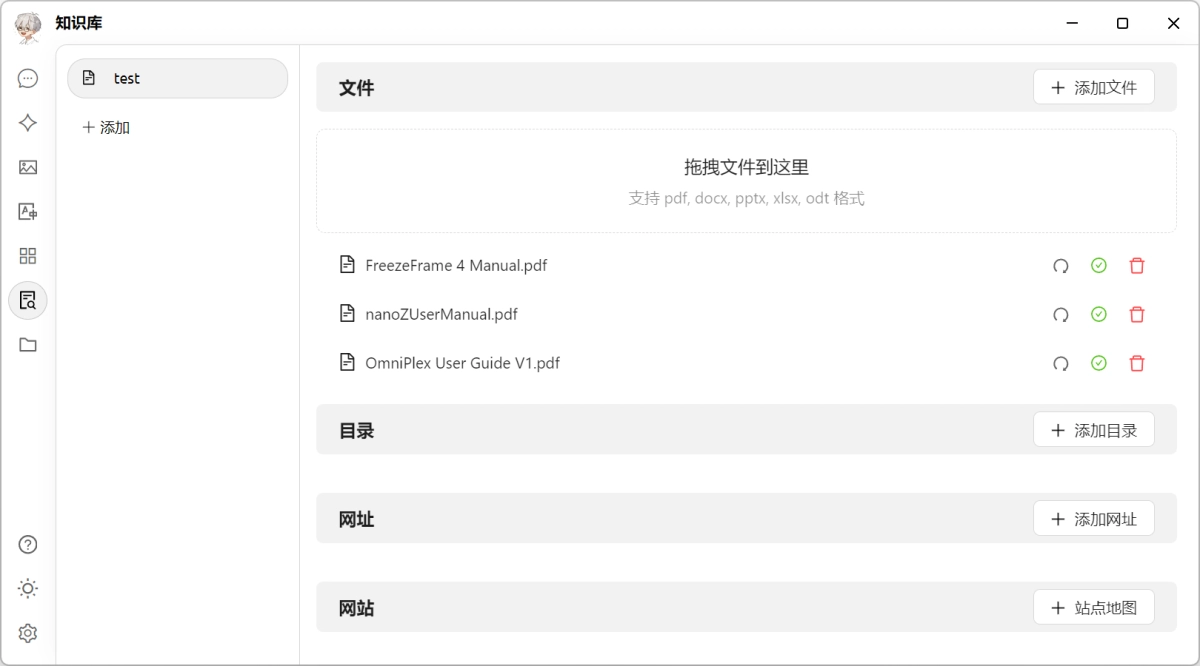
Click Knowledge Base on the left side of the Cherry Studio window and add a new knowledge base. The name can be anything you like. For the embedding model, choose the bge-m3:latest model you configured earlier.
8. Add your files
Drag the files you want to include into the knowledge base. When the embedding model has finished preprocessing a file, a small green check mark will appear next to it.
9. Chat with your knowledge base
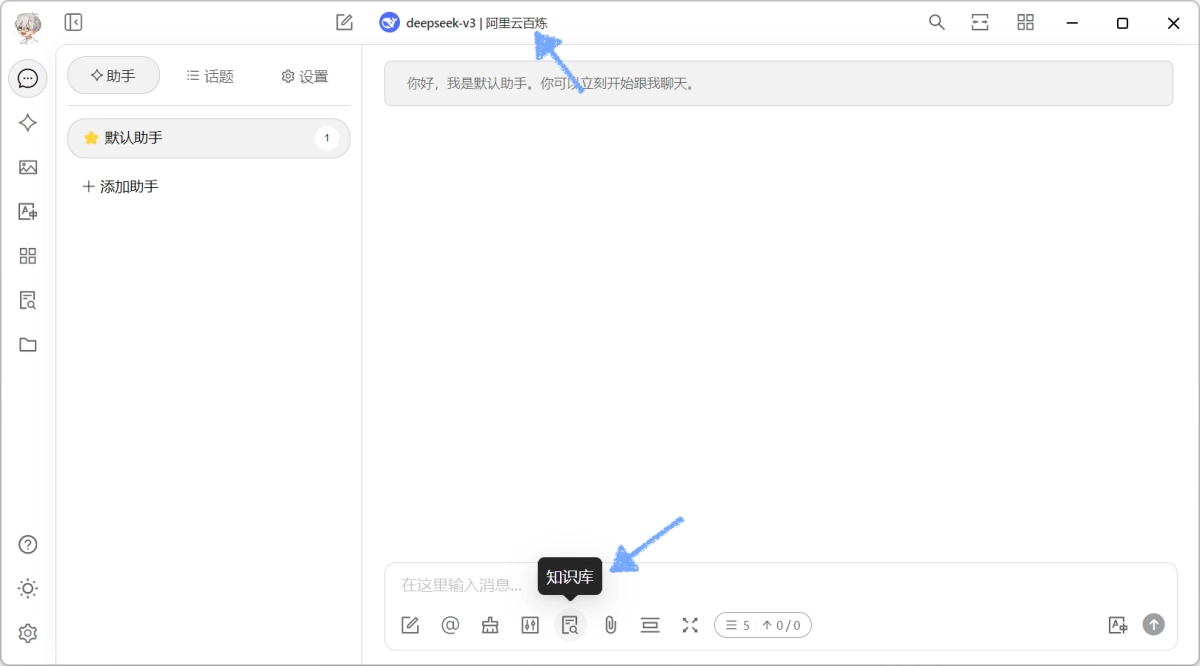
Create a new conversation and check the Knowledge Base option. You can now query your own knowledge base. Remember to choose the language model you want to use at the top of the chat window.
A closing thought
When ChatGPT first appeared, plenty of people wrote it off as a fancy parrot that stitched together stock phrases. Few expected the pace of change over the next two or three years: real-time web retrieval, coding assistance, deep research, and more. These advances have made ordinary knowledge workers significantly more productive, and in some cases they are beginning to take over parts of traditional roles. In the middle of that shift, worrying passively about replacement does not help much. Learning the new tools does. Now that DeepSeek is a common topic, the more useful question is how to turn this capable digital assistant into something that genuinely improves your own competitiveness.