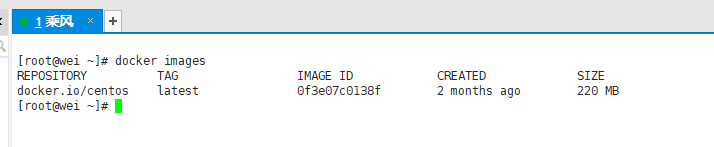
Before you can create a container, you must have an image available locally. That is the basic prerequisite. A CentOS image is used here for demonstration.
1
 docker pull centos
Create and start a container
The basic command is:
docker run [OPTIONS] IMAGE [COMMAND] [ARG…]
Common docker run options
Some options use a single hyphen, while others use a double hyphen.
--name="new container name": assign a custom name to the container-d: run the container in the background and return the container ID; this starts it in detached mode-i: keep the container running in interactive mode, usually used together with-t-t: allocate a pseudo-TTY for the container, usually used together with-i-P: map ports randomly-p: specify port mappings in one of these formats:ip:hostPort:containerPortip::containerPorthostPort:containerPortcontainerPort
Start an interactive container
The following command starts a container from centos:latest in interactive mode and runs /bin/bash inside it.
1
 docker run -it centos /bin/bash

List containers
Use this command to view running containers:
docker ps [OPTIONS]
Common options:
-a: show all currently running containers plus containers that ran previously-l: show the most recently created container-n: show the most recently createdncontainers-q: quiet mode, display only container IDs--no-trunc: do not truncate the output

Leave a container
There are two common ways to exit:
exit
- stop the container and exit
ctrl+P+Q
- exit the container without stopping it
Re-enter a container
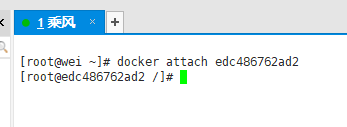
To attach to a running container again:
docker attach 名称
1
 docker attach edc486762ad2
Start or restart a container
Start a stopped container:
1
 docker start 容器ID或者容器名
Restart a container:
1
 docker restart 容器ID或者容器名
Stop a container
Gracefully stop a running container:
1
 docker stop 容器ID或者容器名
Force-stop a container
If a container does not stop normally, you can kill it directly:
1
 docker kill 容器ID或者容器名
Remove a stopped container
To delete a container that has already been stopped:
1
 docker rm 容器ID
Remove multiple containers at once
Two common ways to delete multiple containers in one command are:
1
 docker rm -f $(docker ps -a -q)
1
 docker ps -a -q | xargs docker rm