This desktop clock skin for Rainmeter recreates the gear-style clock seen in Rewrite, including the same clockwise and counterclockwise rotation effects. A few details have been adjusted from the original design, most notably replacing the twelve Chinese characters with Roman numerals.
The idea was inspired by this post: https://tieba.baidu.com/p/5768402674
Download: https://wws.lanzoub.com/iFxCo04qgcmb
Because the clock uses a lot of transparency, it looks best on a plain, solid-color wallpaper.

Installation
Video tutorial: https://www.bilibili.com/video/BV1eA4y1f7Vv
This clock requires Rainmeter, so make sure the software is installed first. Rainmeter website: https://www.rainmeter.net/
During installation, the default options are fine all the way through. You can install it on any drive; it does not have to go on the default C drive.
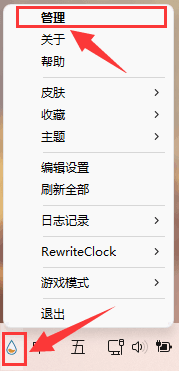
Once Rainmeter is installed, find its tray icon on the Windows taskbar. Double-click it, or right-click and open the management panel.
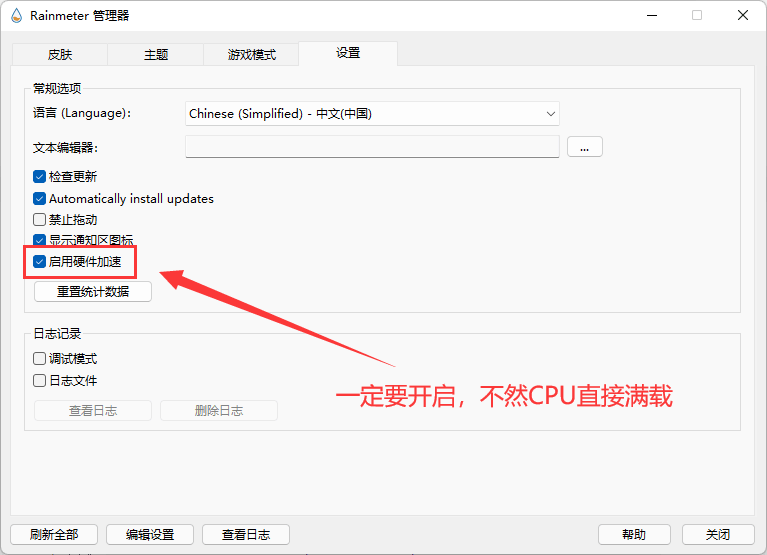
After opening the Rainmeter manager, enable hardware acceleration. This setting is important, so do not skip it.
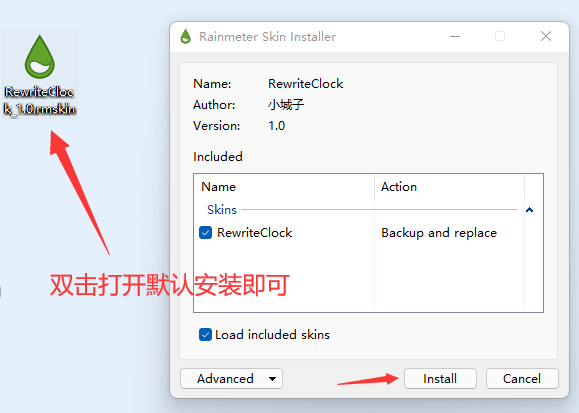
Extract the downloaded archive, locate RewriteClock_1.0.rmskin, and install it by double-clicking the file.
Once installation is finished, the clock should appear on your desktop automatically.
Changing the size
Rainmeter does not support freely scaling skins to any size, so several preset sizes are included instead. It is a little inconvenient, but for now that is the available method.
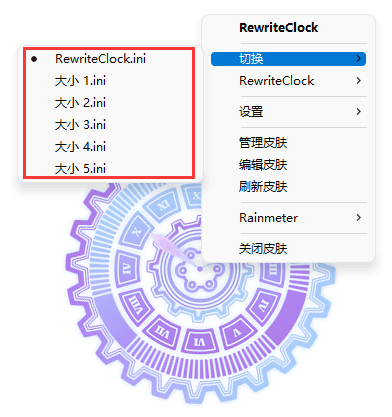
To change the size, right-click somewhere on the clock itself. Be careful not to click on a transparent area. In the panel menu, use the switch option to select a different size.
RewriteClock.ini)</td>
<td>300</td>
</tr>
<tr>
<td>Size 1</td>
<td>400</td>
</tr>
<tr>
<td>Size 2</td>
<td>500</td>
</tr>
<tr>
<td>Size 3</td>
<td>600</td>
</tr>
<tr>
<td>Size 4</td>
<td>800</td>
</tr>
<tr>
<td>Size 5</td>
<td>1000</td>
</tr>
</tbody>
</table>