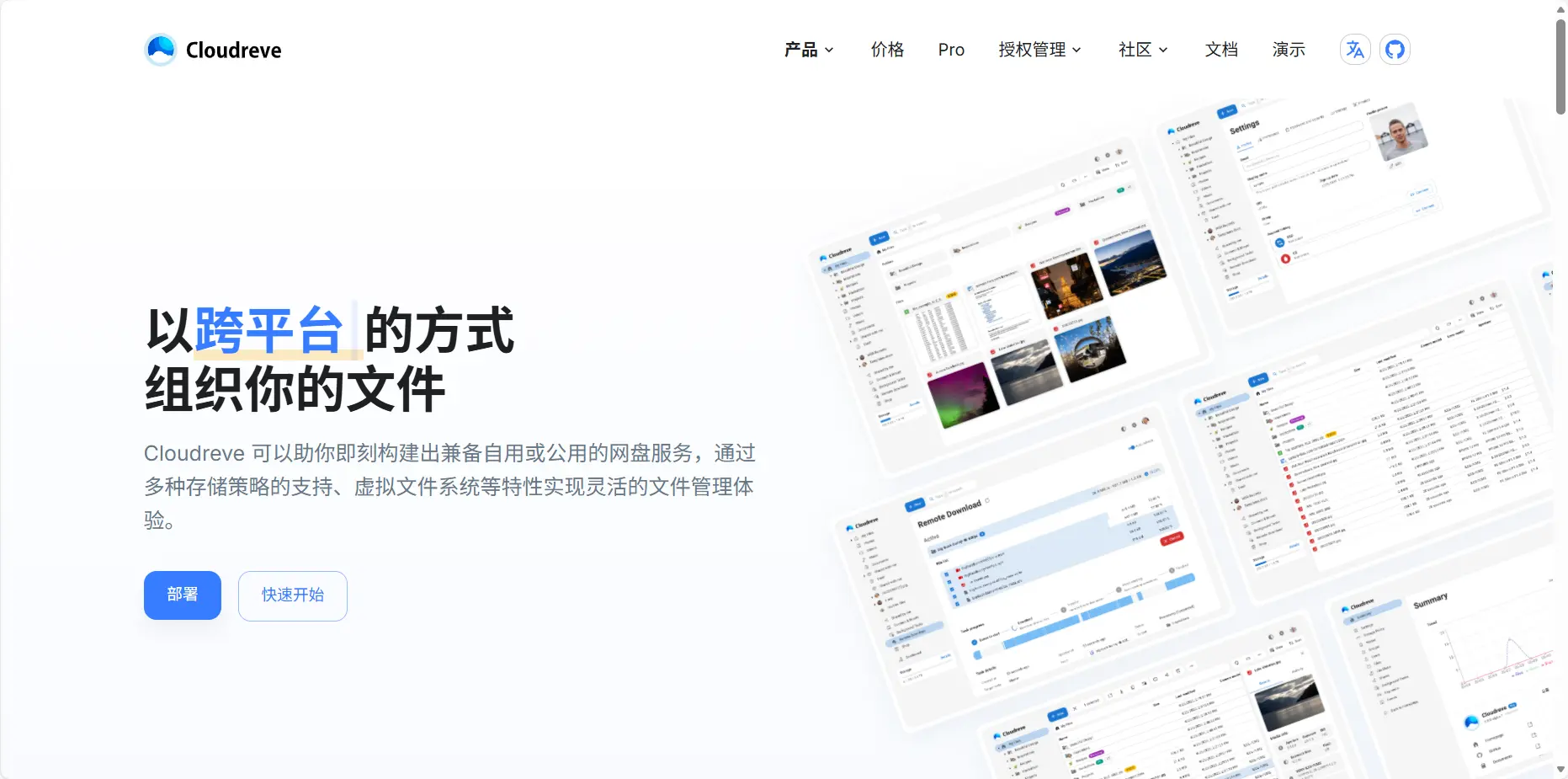
Cloudreve is an open-source cloud drive system. It can use local storage, S3-compatible object storage such as Alibaba Cloud OSS or Tencent Cloud COS, OneDrive, Google Drive, and other backends. The point is to give users one file-management interface without having to think about where each byte lives. It is a cloud drive system, not a tool for merging several third-party cloud drives into one view; it works best as an independent service.
What you need before starting
You’ll need a server with at least 2GB of RAM and enough bandwidth. If you plan to use international OneDrive, choose a server outside mainland China. Make sure Baota (BT Panel) is installed and its web admin is reachable. In your DNS provider, point the domain you want to use at the server’s IP.
Install Cloudreve from Baota’s Docker area
Sign in to Baota and open Docker in the left menu.
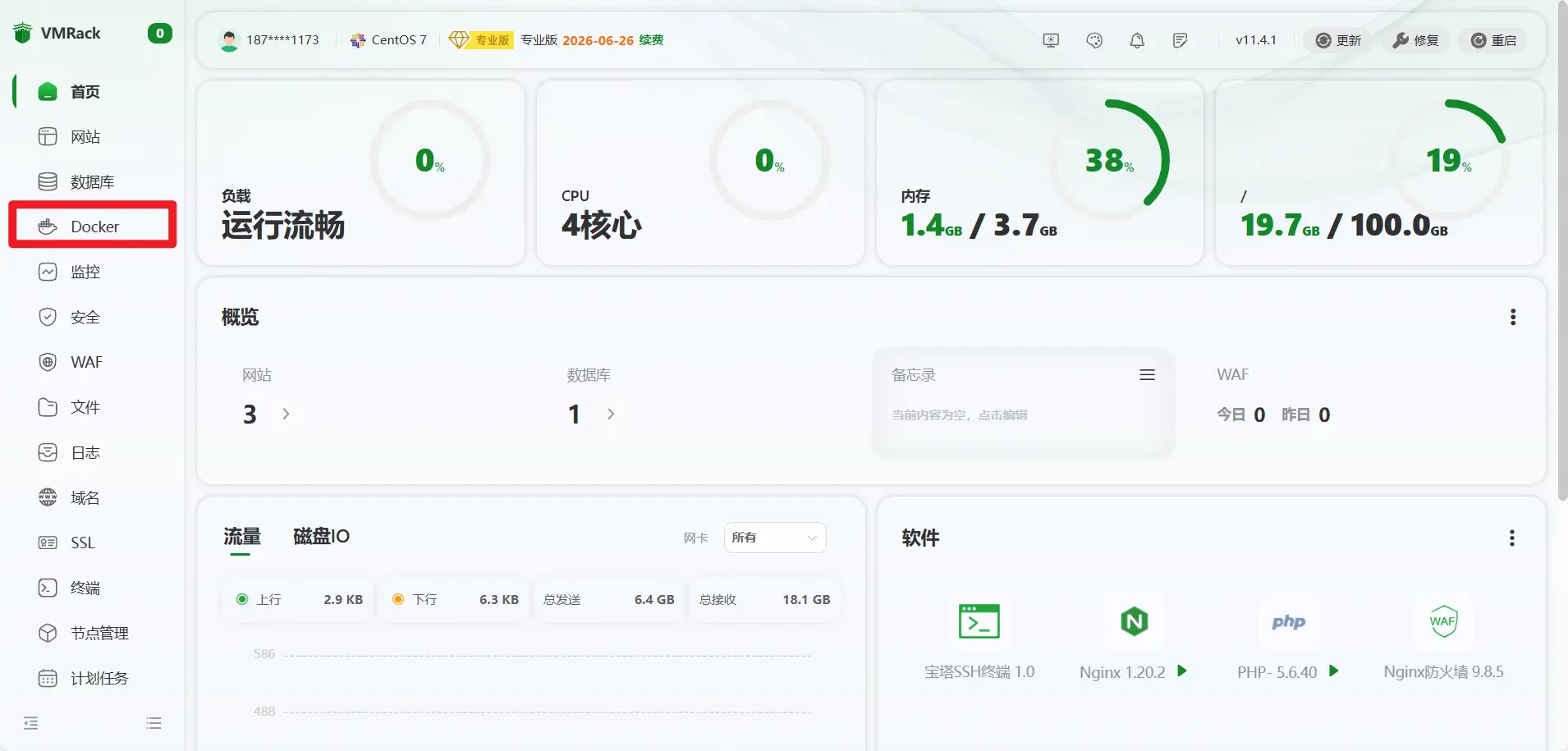
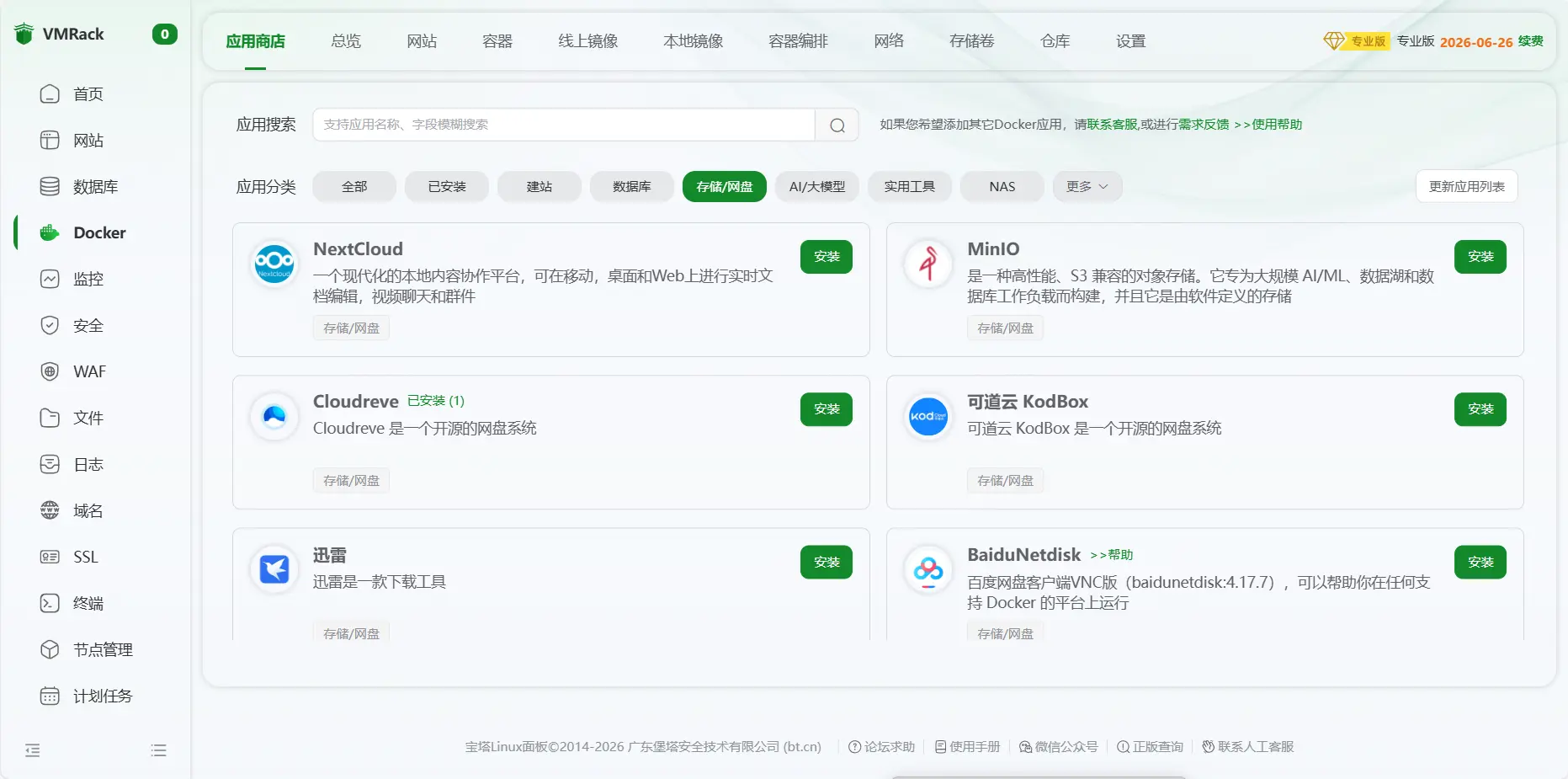
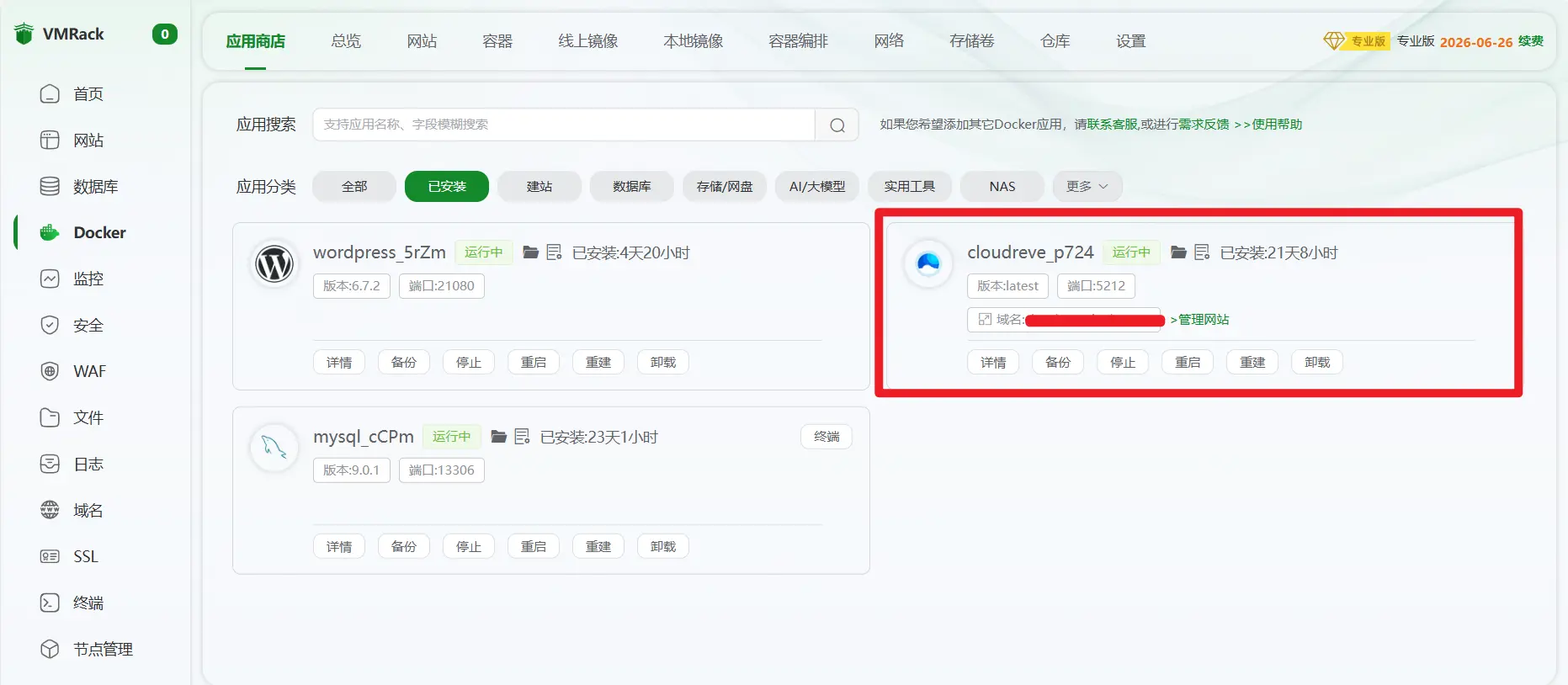
If Docker isn’t installed, install it first. Then open App Marketplace, choose the Storage / Cloud Drive category, find Cloudreve, and click Install.
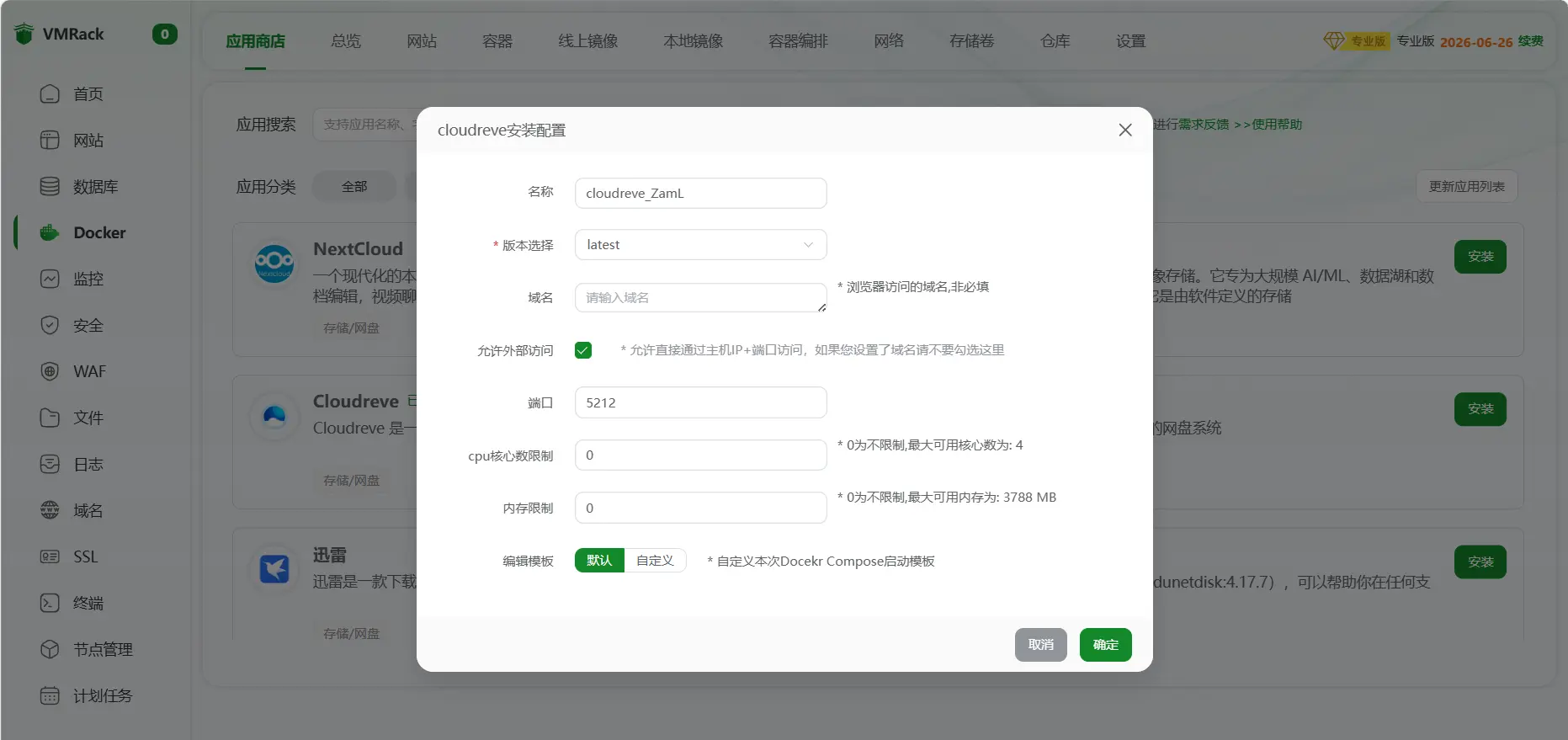
In the deployment form, enter the domain you want to bind. Clear the “Allow external access” checkbox, then confirm. Baota will pull the image and start the container.
When it finishes, the status should show Running.
Add HTTPS with Let’s Encrypt
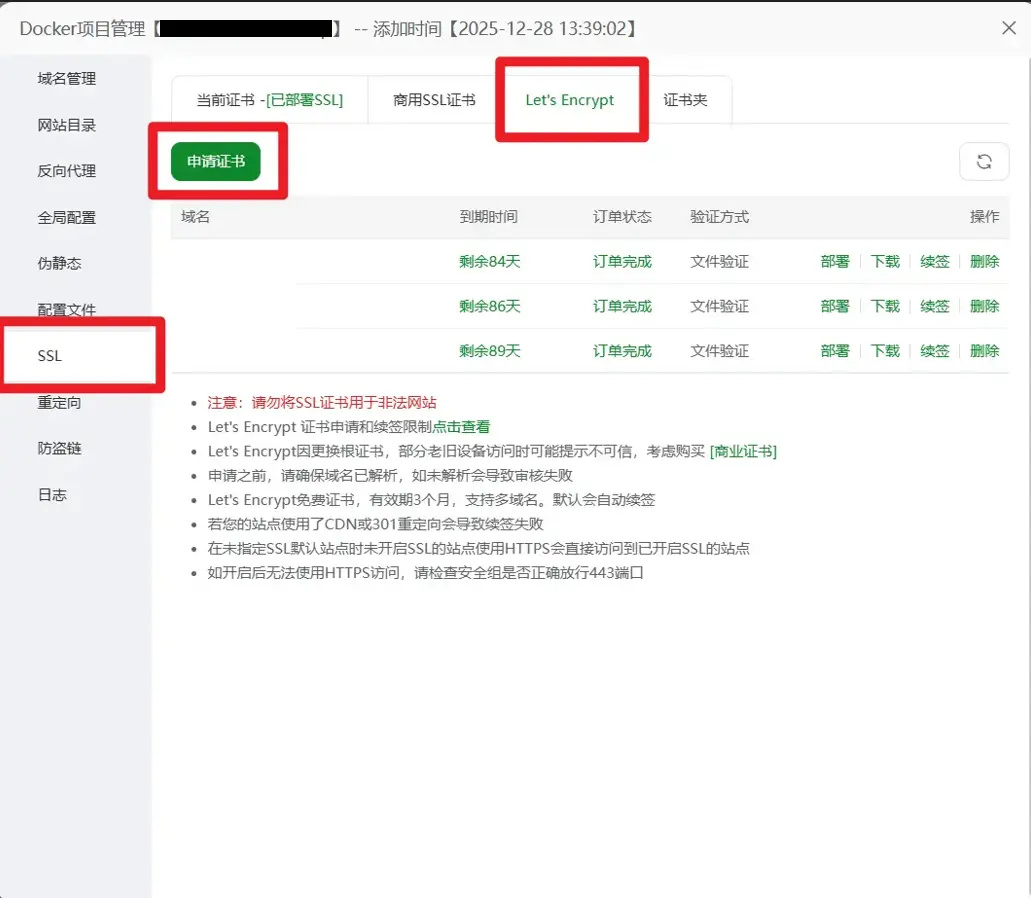
On the Cloudreve app card, click Manage Website and open the SSL tab. Choose Let’s Encrypt and click Apply Certificate.
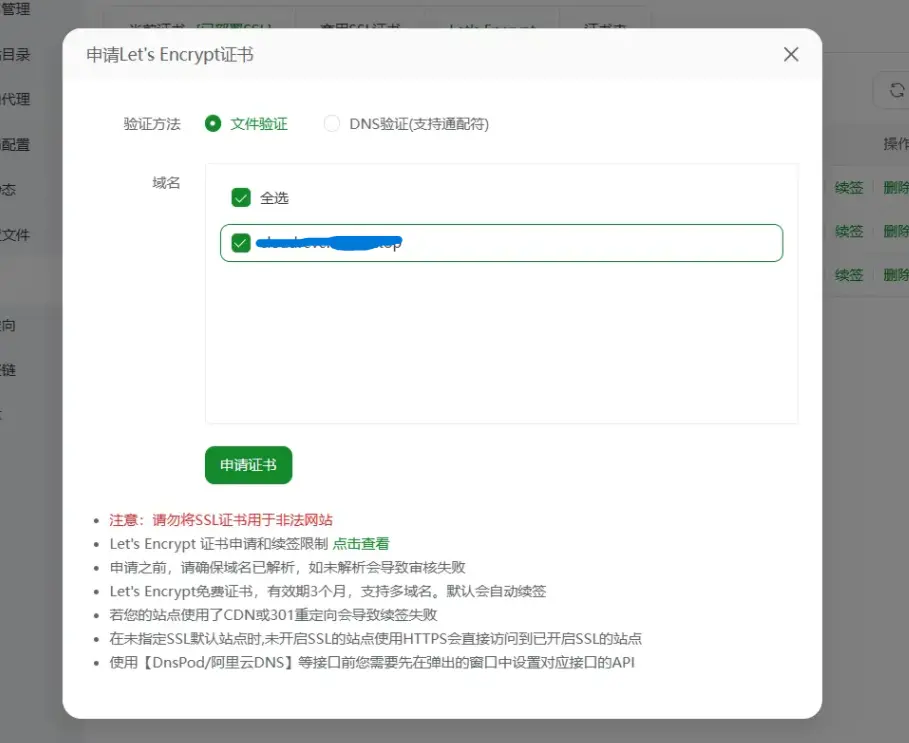
Select File Verification and pick the domain you bound earlier. Click Apply Certificate; Baota handles validation and issuance automatically.
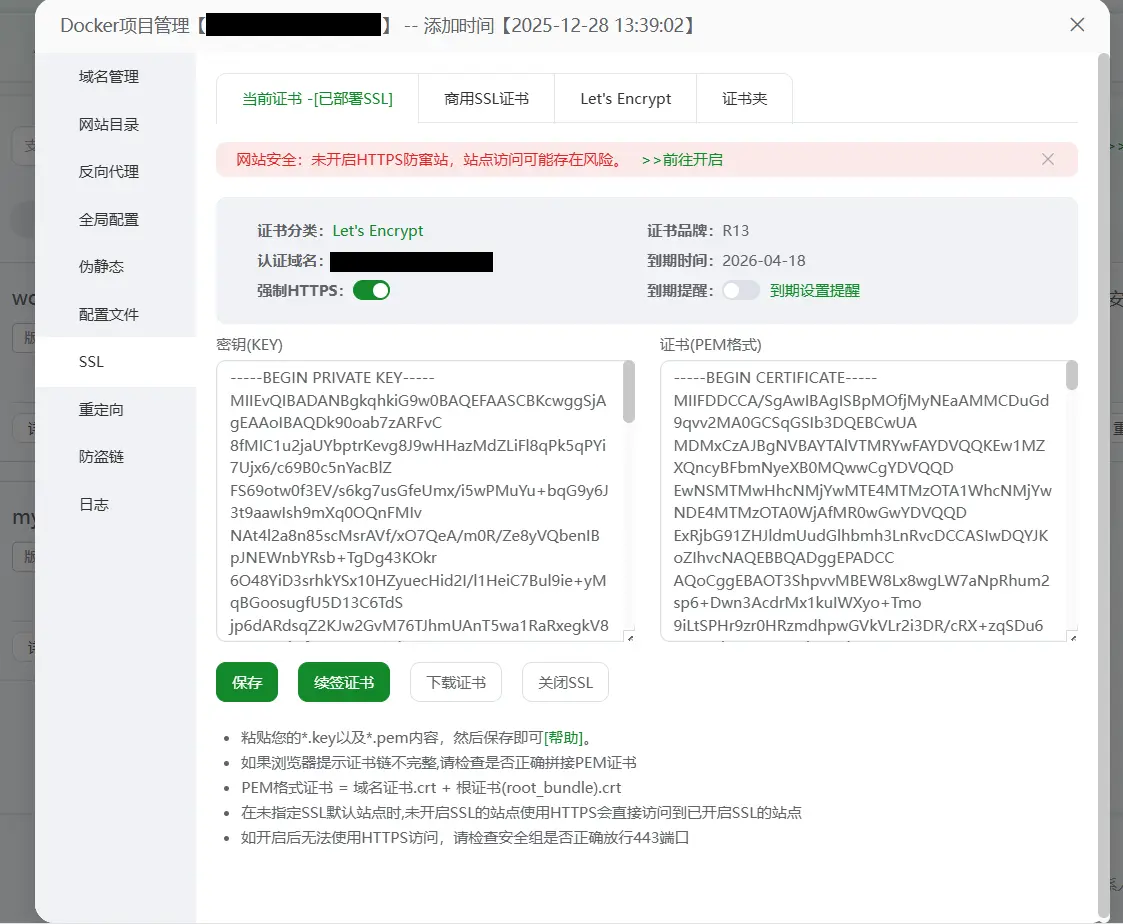
Once the certificate is issued, enable Force HTTPS and save.
You can now open https://your-domain and reach the Cloudreve login page over a secure connection.
Create the first account and take admin rights
The first visit asks you to register the first user. That account automatically becomes the administrator, so enter an email and password and sign in with admin access.
Use OneDrive as the storage backend
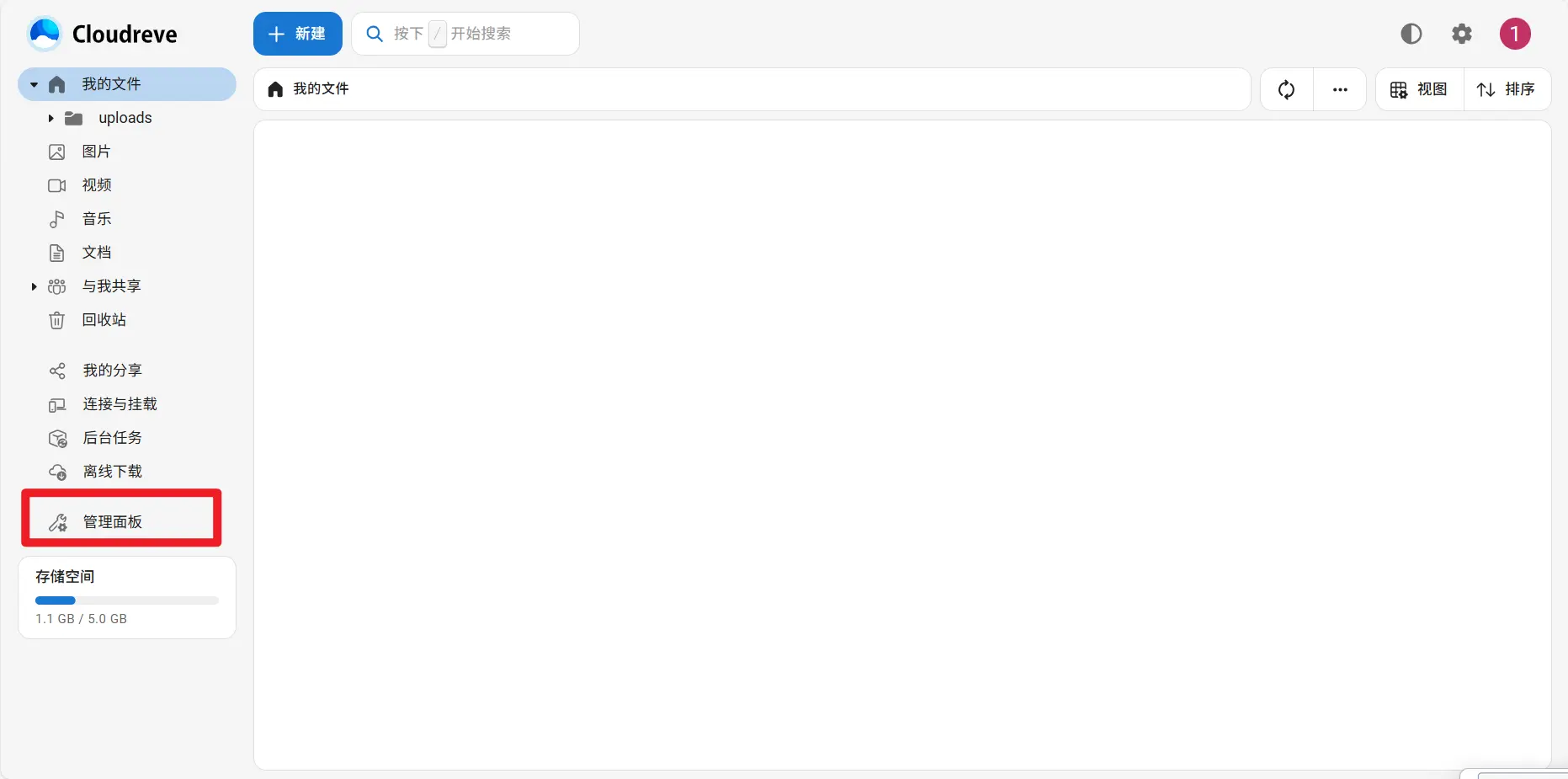
Cloudreve starts with local storage. To get more capacity and lower storage cost, you can move files to OneDrive. After signing in, open Admin Panel at the bottom of the left sidebar.
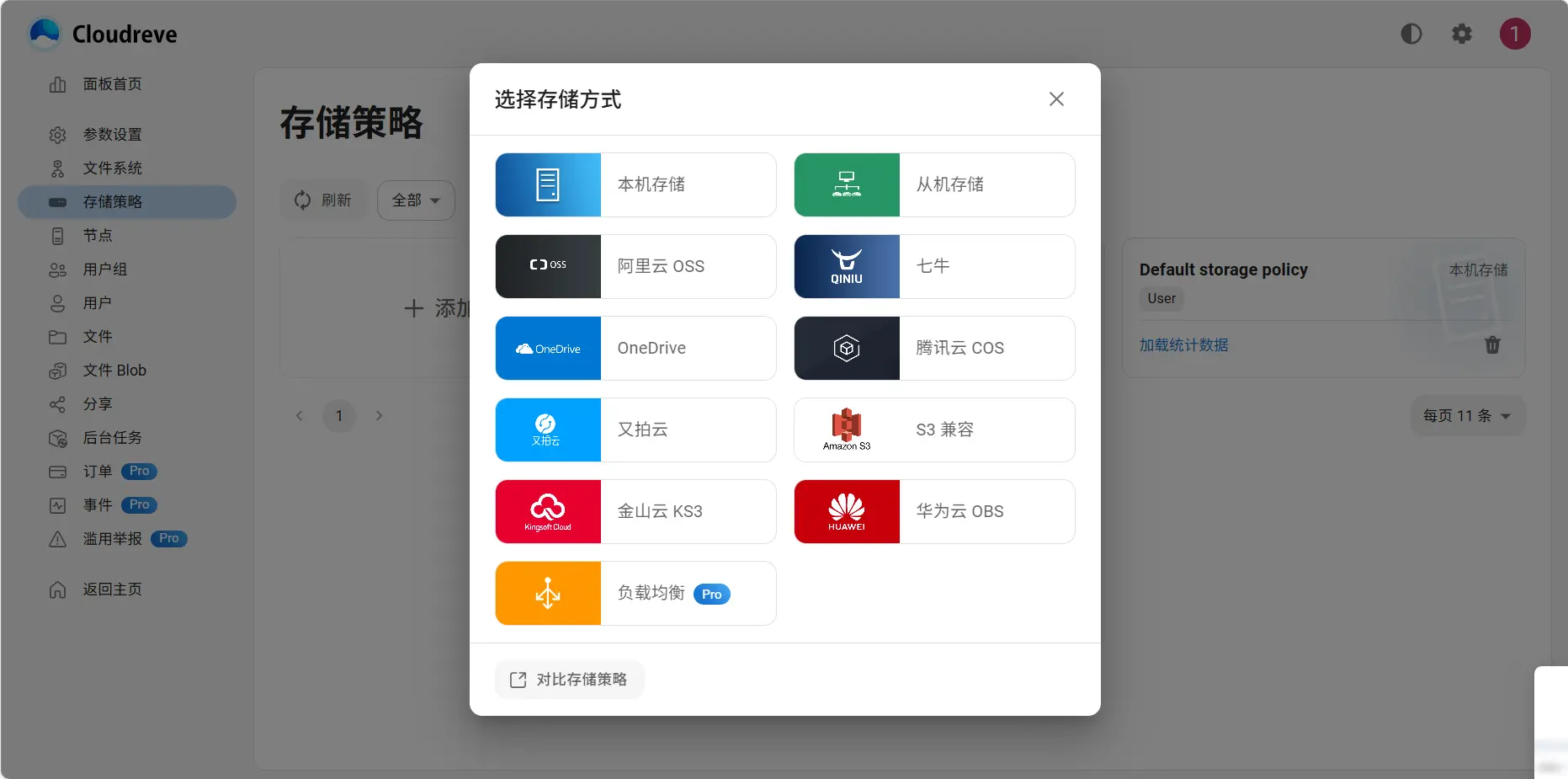
In the settings menu, choose Storage Policies. Some features on this page carry a Pro label and require a purchase to unlock commercial functions such as the huang1111 cloud drive. For a personal drive, the free community edition is generally enough.
Click Add Storage Policy. Cloudreve lists several providers; choose OneDrive. The official documentation has a comparison of storage policies if you want to weigh alternatives.
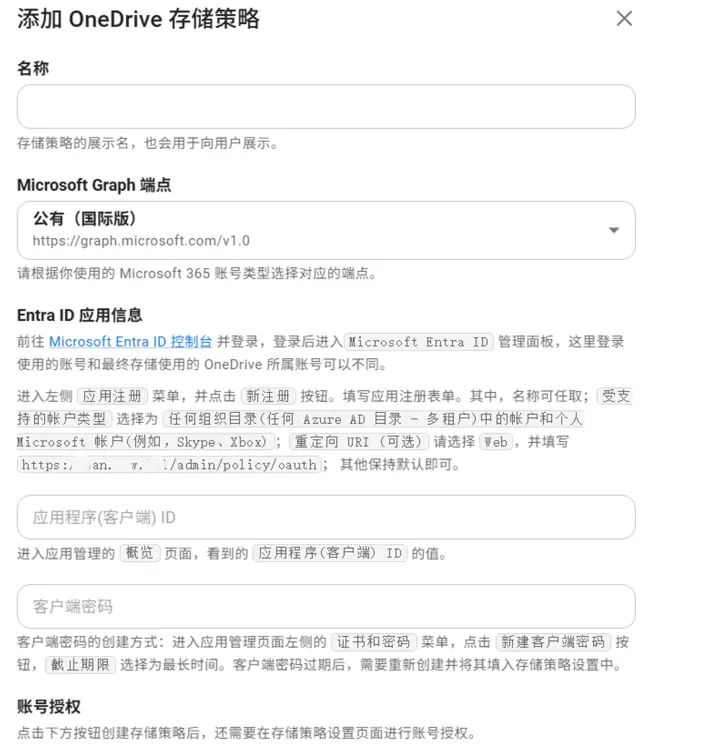
Give the policy any Name, and set Microsoft Graph Endpoint to Public (International). Then go to the Microsoft Entra ID console and sign in with a Microsoft account. The account you use for the Entra ID setup does not have to be the same account that owns the OneDrive you will store files in.
In the left menu, open App registrations and click New registration. Fill out the form: the name can be anything; for Supported account types, choose Accounts in any organizational directory (Any Microsoft Entra ID tenant - Multitenant) and personal Microsoft accounts (e.g. Skype, Xbox); for Redirect URI (optional), choose Web and enter https://your-domain/admin/policy/oauth. Leave the rest at their defaults. On the app’s Overview page, copy the Application (client) ID into Cloudreve.
Next, create a client secret. In the Entra ID app management page, open Certificates & secrets and click New client secret. Set the expiration to the longest available period. When the secret expires, you’ll need to create a new one and enter it in the storage policy settings. Click create at the bottom of the page.
Back in the storage policy settings, sign in to your Microsoft account. After a successful sign-in, the OneDrive storage policy is added. Go to User Groups → edit the user group → change Available storage policies to the OneDrive policy you just created.
At this point you have a private cloud drive running on Cloudreve with OneDrive behind it. If something doesn’t behave as expected, Cloudreve’s documentation is the first place to check.