AnimStack is a GIMP script that automates a lot of the repetitive work behind animated GIFs. Instead of stepping through every frame by hand, you attach tags to layer names and let the script process the stack. That alone can save a significant amount of time, and it also makes some effects much easier to build.
Install and locate the script
Download the script from the project page or the direct file link:
- Project page: http://registry.gimp.org/node/26501
- Script: http://registry.gimp.org/files/animstack.scm
Copy the .scm file into your GIMP scripts folder, for example /home/<username>/.gimp-2.8/scripts, then restart GIMP. After that, AnimStack should appear under Filters > Animation.
A sample animation from the plugin page:

Start with a simple GIF
For a first test, it helps to start from an existing GIF. The avatar-morph animation below is a small stack of frames:

Open it in GIMP. The frames arrive as separate layers. To keep the demo compact, use Image > Canvas Size and set the height to 140 px; the layers resize along with the canvas. At this point the image should look something like this:

Next, create a new 110x140 px white layer. Rename it so that it carries the [bg] tag, then add some text on top and merge the text with the background layer. The before-and-after naming views show how the tag is applied:
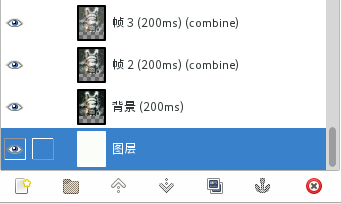
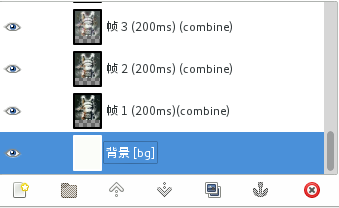
The [bg] suffix is not decorative. It is the instruction AnimStack reads when it processes the layer stack.
One frame goes missing
Run Filters > Animation > Playback and watch the result. The white background is there, but one frame shows only the background and no avatar:

A quick workaround is to merge the last two layers, which removes the immediate problem. That trick has limits: it may work for an overlaid GIF, but it is not a reliable answer for every export mode, especially replacement mode. AnimStack offers a cleaner way to handle the stack.
Process the tags and export
Before running the script, switch the image to RGB with Image > Mode.
Now choose Filters > Animation > Process AnimStack tags. You will see the layers being adjusted. When it finishes, use Filters > Animation > Playback again to check the animation:
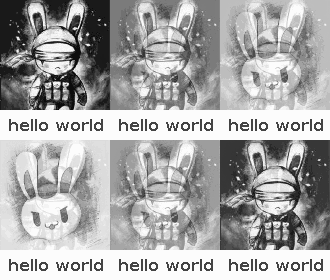
Exporting can still throw a curveball. GIMP may complain and ask you to switch to indexed mode:
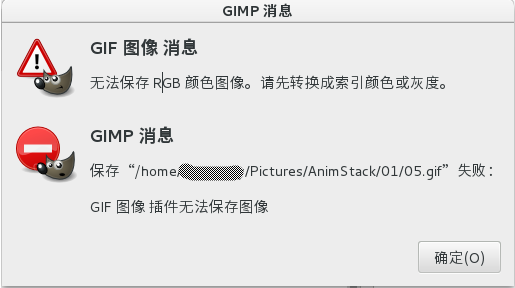
When you try to change back to Indexed, the option may be greyed out. The reason is that the image still contains layer groups, and GIMP will not convert the image in that state. Merging each group by hand is possible, but with many groups it is slow and clumsy. AnimStack includes a one-click command for this: Image > Flatten Layer Groups.
After flattening the groups, switch the image back to Indexed mode and export the GIF.
The same tagging approach can add a persistent element to every frame. Put a text layer at the top, tag it [fg], and after processing it will appear across the animation like a watermark:

That is enough for a hello-world pass: install the script, tag a background layer, process the stack, clear the layer-group obstacle, and export. The tags become more useful as the layer setup grows, and later examples can build on this basic workflow.