Update, 2020-03-10: one of the links was wrong and has been corrected.
Update, 2020-03-11: the method for getting Weibo image URLs has been changed from Extract URL to Extract Pattern, using a regular expression. It should be much more accurate.
Update, 2021-04-25: I have not used Weibo for a long time, so the Weibo-related part may no longer work.
Some time ago, I wrote up a way to cross-post to Mastodon with IFTTT, then more or less left those rules alone. A few days ago, someone mentioned that Weibo syncing had stopped working. In practice, using the Weibo API through IFTTT has always involved a noticeable delay. It still works on my side, but lately it has become even slower, and it also feels as if some content is being filtered.
So, after putting it off for long enough and finding a couple of free days, I decided to look into it again.
The short version: if you do not use the Weibo API, there will inevitably be trade-offs. Broadly speaking, you get to choose one of three imperfect options:
- First repost the content somewhere else, which means no native images.
- Accept ugly formatting, also with no native images:
- HTML tags such as
<br />and<img>remain in the post. - Line breaks may disappear. - Pay for a service, and not cheaply.
I went with the paid option. I still post to Weibo quite a lot, I do not want to route everything through Twitter first, and I do care about using Mastodon as a Weibo archive, including image backups. Which option makes sense depends entirely on what you need.
First step: turn Weibo into an RSS feed
After searching around, I realized there are quite a few GitHub repositories for this. I used to only know that RSSHub could do it, but the demo route was blocked by Weibo, probably because too many people were using it. Self-hosting RSSHub is also a bit troublesome if you are not comfortable with Unix.
So I tried a repository called weibo-rss, and surprisingly it worked on the first attempt. Here is the process.
- Register a free Heroku account and log in.
- In the weibo-rss repository description, click the purple
Deploy to Herokubutton. - In the “Create New App” window:
- Fill in
App namewith a unique English name. This will become part of your RSS URL. - ForChoose a region, pick either one. - LeaveExampleblank. - Click the purpleDeploy appbutton. - Wait a few minutes. Once “Successfully deployed” appears, it is ready. - Click the nine-dot icon near your avatar in the top-right corner and choose
Dashboard. - Open the app you just created.
- Click the
Open appbutton in the top-right corner. - In the “新浪微博 RSS 订阅” window, enter the URL of your own Weibo homepage, click subscribe, and copy the link that appears.
- That link is your Weibo RSS feed. It is best to paste it somewhere handy, such as a notes app, because you will need it later.
This Heroku app does not seem to consume much in the way of resources, so at least for now, a free account appears to be enough.
If even registering for Heroku feels like too much, you can try using a publicly shared app someone else has made available. Just keep in mind that someone else’s app may disappear at any time, so deploying your own is safer.
The free route: IFTTT
Once you have the RSS link, you can set up IFTTT as before. For the “If this” part, use the RSS URL you just generated. For “Then,” use the following settings:
- URL:
https://所在实例网址/api/v1/statuses - Method: POST
- Content type:
application/x-www-form-urlencoded - Body:
access_token=访问令牌&status={{EntryContent}}%0A{{EntryUrl}}
The result is not pretty. For example:
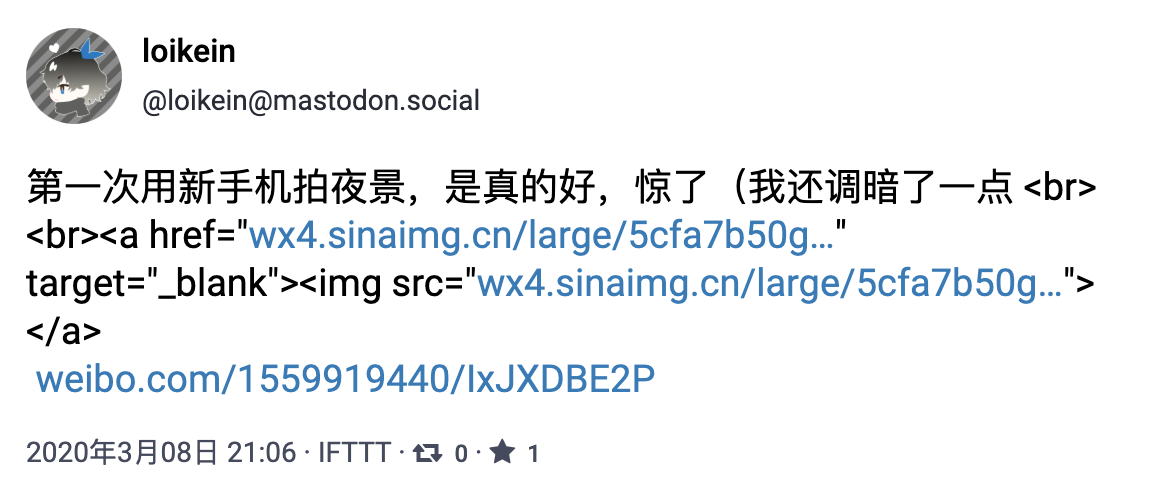
There is not much to be done about that.
The paid route: Zapier
If money is not the main concern, or if you simply enjoy tinkering, Zapier is worth trying. Because this setup needs Webhooks and several steps of feed processing, Zapier Premium is required.
Create a new Zap.
For the “When this happens…” step, choose RSS by Zapier.
- Choose Trigger Event: select
New item in feed. - Customize Item:
- Feed URL: enter the RSS link generated earlier.
- Leave the other fields unchanged and click
CONTINUE. - Click
Test and review, then choose a Weibo post with a relatively large amount of text. - Click
Done Editing.
For the “Do this…” step, choose Formatter by Zapier.
- Choose Action Event: select
Text. - Customize Text:
- Transform: choose
Replace. - Values > Input: select
1. Description. - Find: enter
[:newline:][:newline:]. - Replace: enter
[:newline:]. - Click
CONTINUE.
Click the plus sign and choose Formatter by Zapier again.
- Choose Action Event: select
Text. - Customize Text:
- Transform: choose
Truncate. - Values > Input: select the text generated in the previous step:
2. Description. - Max lenth: enter
400. - Append Ellipsis?: choose
Yes. - Click
CONTINUE.
Click the plus sign and choose Paths.
Path A: Weibo posts with images
For Rules, fill the three fields with 1. Raw Description, (Text) Contains, and <img src=.
In the “Do this…” step, choose Formatter by Zapier > Text.
- Transform: choose
Extract Pattern. - Values > Input: select
1. Raw Description. - Pattern: enter
https://wx\d\.sinaimg\.cn/large/[a-zA-Z0-9]+.jpg.
Click the plus sign, choose Webhooks by Zapier, and set Choose Action Event to POST. This is the first POST request.
Customize Post:
- URL:
https://所在实例网址/api/v1/media - Payload Type: click Use a Custom Value, then enter
multipart/form-data. - Data: leave blank.
- File: select the image link extracted earlier in Path A.
- Headers: fill the two fields with
AuthorizationandBearer 访问令牌respectively. Note the space in the middle. - Leave everything else unchanged and click
CONTINUE.
Click the plus sign again, choose Webhooks by Zapier, and set Choose Action Event to POST. This is the second POST request.
- URL:
https://所在实例网址/api/v1/statuses?access_token=访问令牌 - Payload Type: click Use a Custom Value, then enter
application/x-www-form-urlencoded. - Data: the order does not matter:
media_ids[]and the ID obtained from the first POST request;statusand the shortened3. Descriptionfrom the third step of the Zap, followed by a line break and1. Link;visibilityand your preferred visibility setting. The options are:public,unlisted,private.- Leave everything else unchanged.
Path B: Weibo posts without images
- For Rules, fill the three fields with
1. Raw Description,(Text) Does not contain, and<img src=. - Then repeat the second POST request from Path A, except do not include the
media_ids[]line.
That is it. About ten minutes after posting on Weibo, a Mastodon toot with the native image attached should appear. Here is an example; the client still shows IFTTT because I reused the old token out of laziness:
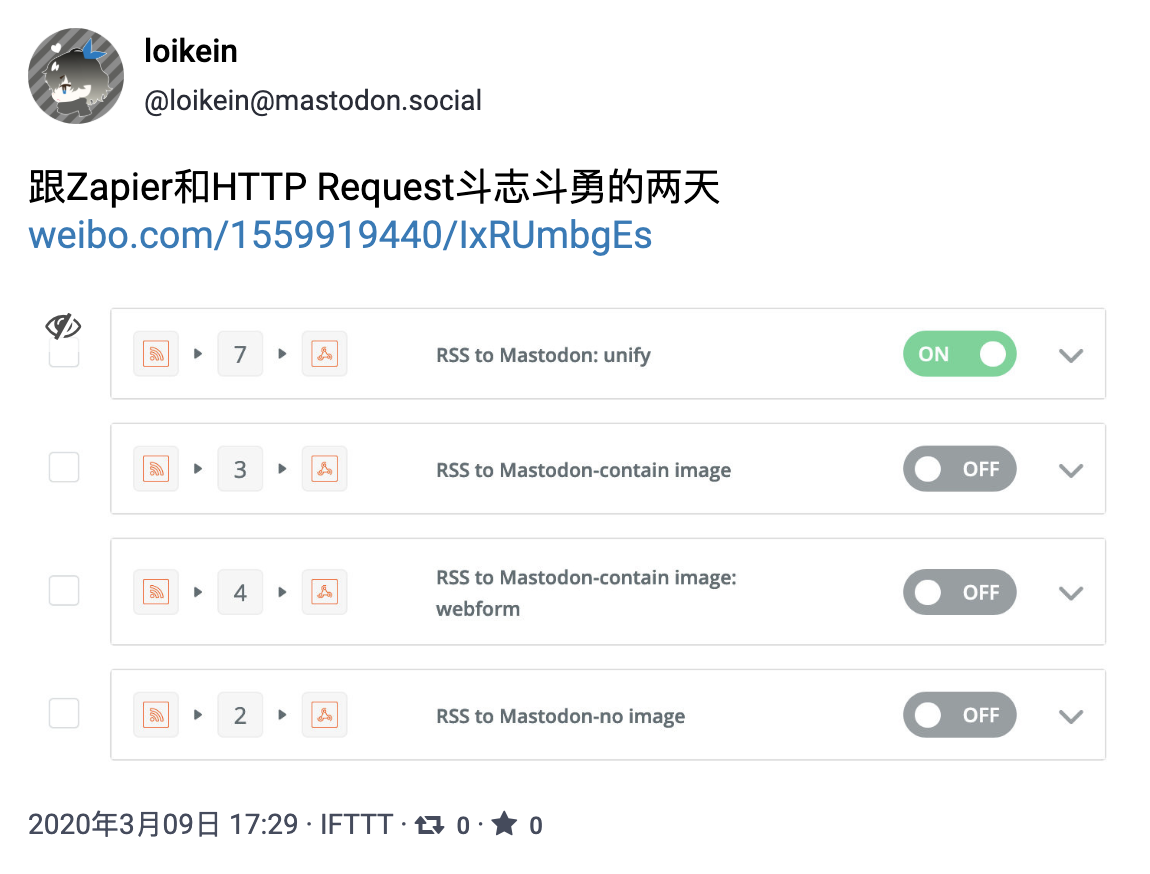
Yes, it is complicated. A little self-congratulation feels justified.