When building forms, the small details are often the ones that get overlooked. Modern browsers already provide a number of user-friendly features such as autocomplete, autocorrect, autocapitalize, spell checking, and even speech input. These can make form filling easier, but they are not always welcome.
For example, an email field usually should not be autocorrected, auto-capitalized, or spell-checked. On a login form, it is often better not to let autocomplete expose previously saved entries for security reasons. HTML gives us several attributes to control these behaviors, and in some cases to turn them off completely.
1. Autocomplete (autocomplete)
Most browsers remember what you entered before so that the next time you fill out a form, they can suggest previously used values. This is the familiar autocomplete behavior.
You can control it with the autocomplete attribute. Setting it to off disables autocomplete.
You can turn off autocomplete for a specific field:
<input type="text" autocomplete="off" />
After that, the browser will no longer show a drop-down suggestion list when you type or double-click in the text box.
If you want, you can also disable it for the entire form:
<form action="?" autocomplete="off">
...
</form>
In that case, every element inside the form will lose autocomplete behavior.
For password fields, setting autocomplete can also affect whether the browser offers to save passwords.
This feature is at least supported by Firefox 38+, Google Chrome 34+, and Internet Explorer 5+.
2. Autocorrect (autocorrect)
This feature is common in mobile browsers. For example, when filling in form fields on Safari for iPhone, autocorrect often appears automatically. It can reduce typing mistakes when writing long text, but in some scenarios it becomes a nuisance rather than a help.
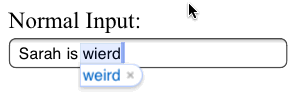
Disabling it works the same way: set the value to off. You can apply it to a single input field like this:
<input type="text" autocorrect="off" />
You can also apply the setting at the form level.
3. Autocapitalize (autocapitalize)
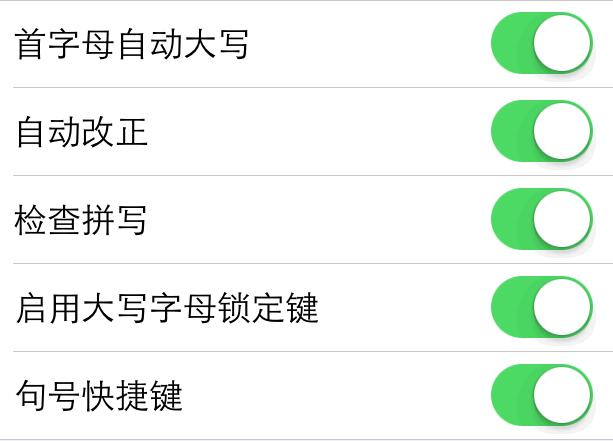
This is also mainly used in mobile browsers. What makes it a little different is that, besides off, it has several other possible values:
When
autocapitalize="words"is set, the first letter of each word is automatically capitalized. Whenautocapitalize="characters"is set, every letter is capitalized. Whenautocapitalize="sentences"is set, the first letter of each sentence is automatically capitalized.
Like the other attributes, it can be used on an input element or on the form itself:
<input type="text" autocapitalize="off" />
4. Spell checking (spellcheck)
This feature highlights possible spelling mistakes, usually with a red underline or a similar visual marker.

One detail to remember is that this attribute takes only true or false, not on or off. It can be used on input elements as well as on form:
<input type="text" spellcheck="false" />
If you do want spell checking, just set spellcheck to true.
A common question is whether spell checking only works for English. Not necessarily. In many cases it depends on the lang attribute. For example:
<html lang="en">
<body>
<textarea></textarea>
<textarea lang="fr"></textarea>
<div lang="ru">
<textarea></textarea>
</div>
</body>
</html>
In this example, the first textarea is checked according to lang="en" and uses English vocabulary. The second textarea uses lang="fr" and is checked against French words. The last textarea inherits lang="ru" and is checked using Russian rules. Of course, this also depends on whether the browser has the relevant dictionary installed; if not, the spell-checking feature will be turned off automatically.
5. Speech input (x-webkit-speech)
This is actually a Chrome-specific attribute, and it seems to have been discontinued in newer versions. If a form element includes it, a small microphone icon appears next to the field, and clicking it allows speech input.
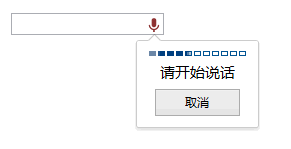
<input type="text" x-webkit-speech />
That covers the main features for now. As browsers continue to evolve, more capabilities will undoubtedly appear. Used wisely, these HTML features can make front-end forms more human-friendly and much easier to use.