Some demos are easier to show than to explain. A short GIF can make a UI effect, an animation, or a small tutorial much clearer than a paragraph of text, and for compact how-tos the format often works surprisingly well. On Linux, capturing only the relevant rectangle is the awkward part. The two setups below take different routes to that same goal; pick whichever fits the job.
recordmydesktop, mplayer, and ImageMagick
This route records an OGV video with recordmydesktop, converts the video into a JPEG image sequence with mplayer, and then joins the frames into a GIF with ImageMagick's convert command. It is worth knowing even though the second approach is usually more pleasant, because any one of these steps could later be replaced by a better tool and make the workflow convenient. If you have a choice, try the second method first; selection here is frustrating.
Recording with recordmydesktop is straightforward and widely covered elsewhere, so the important part is the conversion chain. First, extract frames:
mplayer -ao null <video file name> -vo jpeg:outdir=output
Then combine them:
convert output/* output.gif
You can also resize or optimize during conversion:
convert output.gif -fuzz 10% -layers Optimize optimised.gif
The main drawback is selection precision. recordmydesktop only lets you choose the area through its small window, which is not exact enough. One workaround is to adjust the image sequence in a batch after extraction. You can also delete frames from the beginning or end to remove dead time. The advantage is control over the ending: because you are recording video, pressing Ctrl+Alt+S stops it exactly when you want.
byzanz, screenruler, and xdotool
byzanz records a GIF directly from a terminal command. screenruler is a ruler you can place on screen to measure the width and height of the target area, and xdotool can read the mouse coordinates so you can pin down the starting corner. Together they make region selection much more comfortable. The catch is timing: once you specify a duration, you have to complete the action precisely within that window. Since byzanz exports a GIF directly, changing the length later means converting to an image sequence and rebuilding the GIF. That is a little tedious, but the output quality is good.
Here is what byzanz offers:
$ byzanz-record --help
用法:
  byzanz-record [选项...] 录制您的当前桌面会话

帮助选项:
  -?, --help              显示帮助选项
  --help-all              显示全部帮助选项
  --help-gtk              显示 GTK+ 选项

应用程序选项:
  -d, --duration=SECS     动画的时间 (默认:10 秒)
  --delay=SECS            开始之前的延时(默认:1 秒)
  -c, --cursor            录制鼠标光标
  -a, --audio             录音
  -x, --x=像素            要录制矩形的 X 坐标
  -y, --y=像素            要录制矩形的 Y 坐标
  -w, --width=像素        录制矩形的宽度
  -h, --height=像素       录制矩形的高度
  -v, --verbose           详细
  --display=显示          要使用的 X 显示
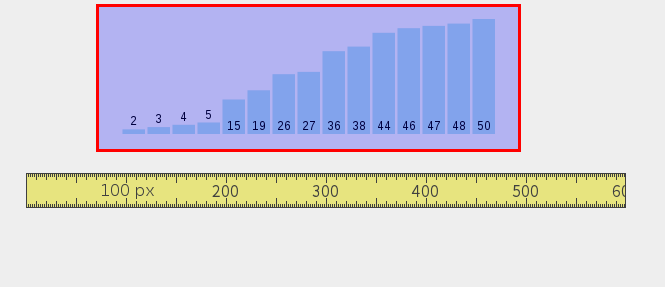
Those options give you a precise rectangle. For example, imagine an algorithm demo page where the red area is what you want to capture. Use screenruler, the yellow ruler in the screenshot, to measure the area; right-clicking lets you adjust the ruler's settings. In this case the width is about 420 px and the height about 140 px.
Next, find the starting position:
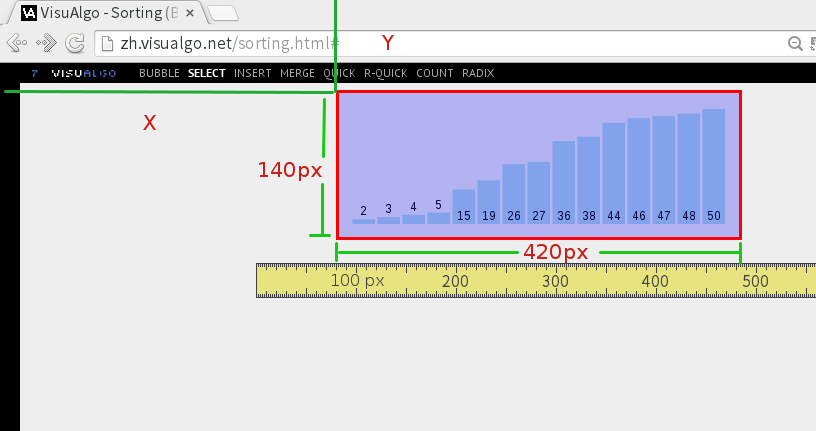
Here the y coordinate is roughly 90 px and x is roughly 340 px. A more reliable way is to put the mouse at the top-left corner of the intended area and run xdotool getmouselocation, which prints the coordinates directly. That is the recommended approach.
$xdotool getmouselocation
x:327 y:96 screen:0 window:37749219
With those values, run:
byzanz-record -c -x 340 -y 90 -w 420 -h 140 -d 10 finish.gif
The first capture will probably be slightly off because the numbers were estimated. Adjust the duration, width, height, and coordinates based on the result. A second attempt might look like this:
byzanz-record -c -x 340 -y 90 -w 400 -h 140 -d 22 finish.gif
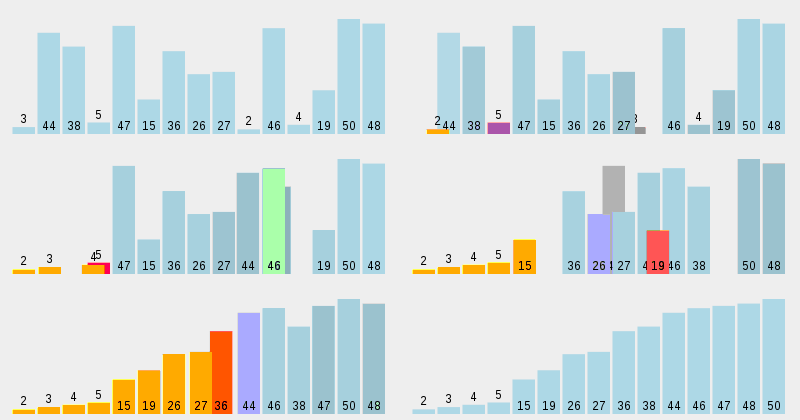
The file is 572.8 KB, and the result is quite good.
The algorithm demo site is http://zh.visualgo.net/. Can you tell which sorting algorithm is being shown?