If you have spent any time tinkering with TV boxes or projectors, you have probably run into the same limitation: the official YouTube app works properly only on Google TV. On many Chinese-made TV boxes, smart TVs, and projectors, flashing a different ROM, rooting the device, or installing Google services is difficult enough to make the official route impractical.
A much easier workaround is to use SmartTubeNext (formerly Smart YouTube TV), an open-source YouTube client built for big-screen devices. It does not require Google services, removes ads, and still supports the features most people actually want, including recommendations, likes, and subscriptions. In day-to-day use, it is very close to the official app.
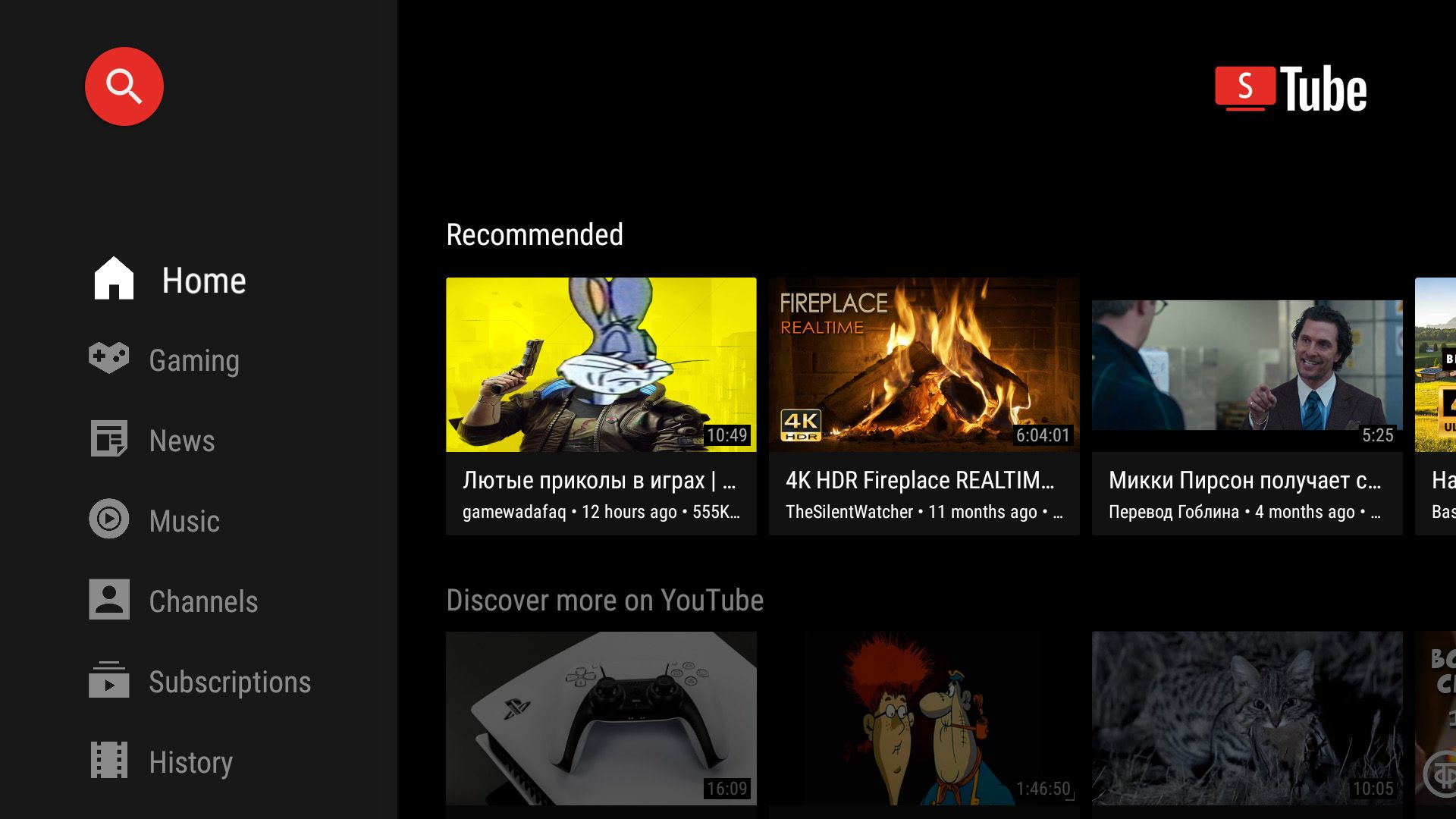
What follows is a setup method for watching YouTube on a TV box, smart TV, or projector using SmartTubeNext.
What you need
Even though SmartTubeNext is a third-party client, it still relies on YouTube's official APIs. That means a suitable network setup is still necessary in mainland China.
1. SmartTubeNext
Download the Stable release of SmartTubeNext from its release page.
2. Clash for Android
Clash is an Android proxy client. On TV devices, the initial setup is easier with an external mouse, but after configuration it can be operated with just the remote control.
From the latest release, open Assets and download:
premium-universal-release.apk
3. A proxy service
Clash is only the client. You still need an actual proxy provider and a subscription link that Clash can import.
One service mentioned in the original setup is 召唤师, described as stable and fast enough for 4K YouTube playback, with multiple routes and extra lines for Netflix, Hulu, and Disney+.
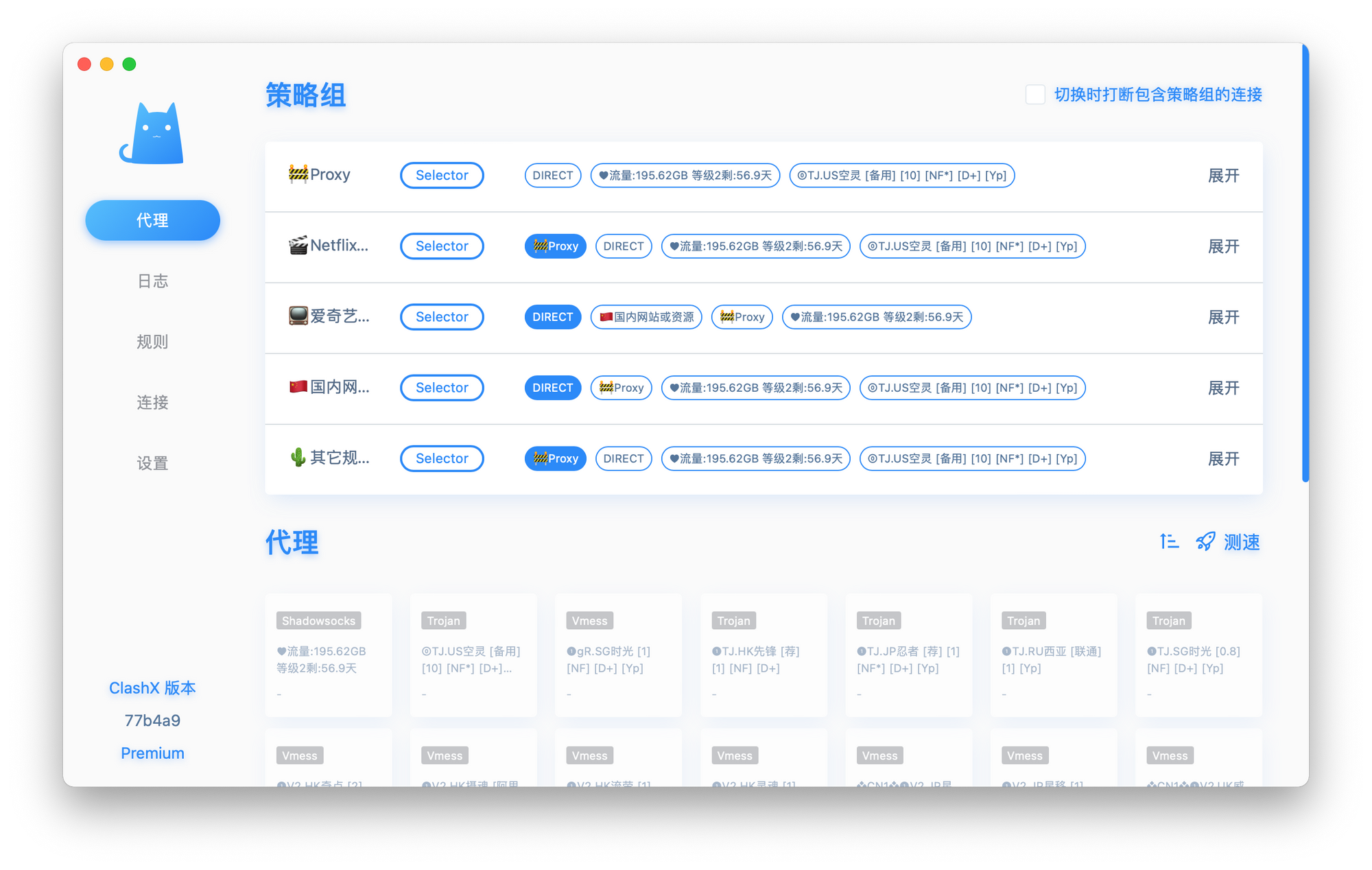
A referral bonus and discount code were also provided:
优惠码:9gHN9U43966
4. 小盒精灵
Download 小盒精灵 as well. It is used to transfer the subscription URL from your phone or computer into Clash on the TV device.
Install the apps on the big-screen device
Copy the three APK files—SmartTubeNext, Clash, and 小盒精灵—to a USB drive, then move them onto the TV box, smart TV, or projector. After that, install all three apps on the device.
For the rest of the guide, all of these will be treated as the same kind of device: a big-screen device.
Import the proxy subscription into Clash
First, locate the subscription link from your proxy provider that is compatible with Clash.
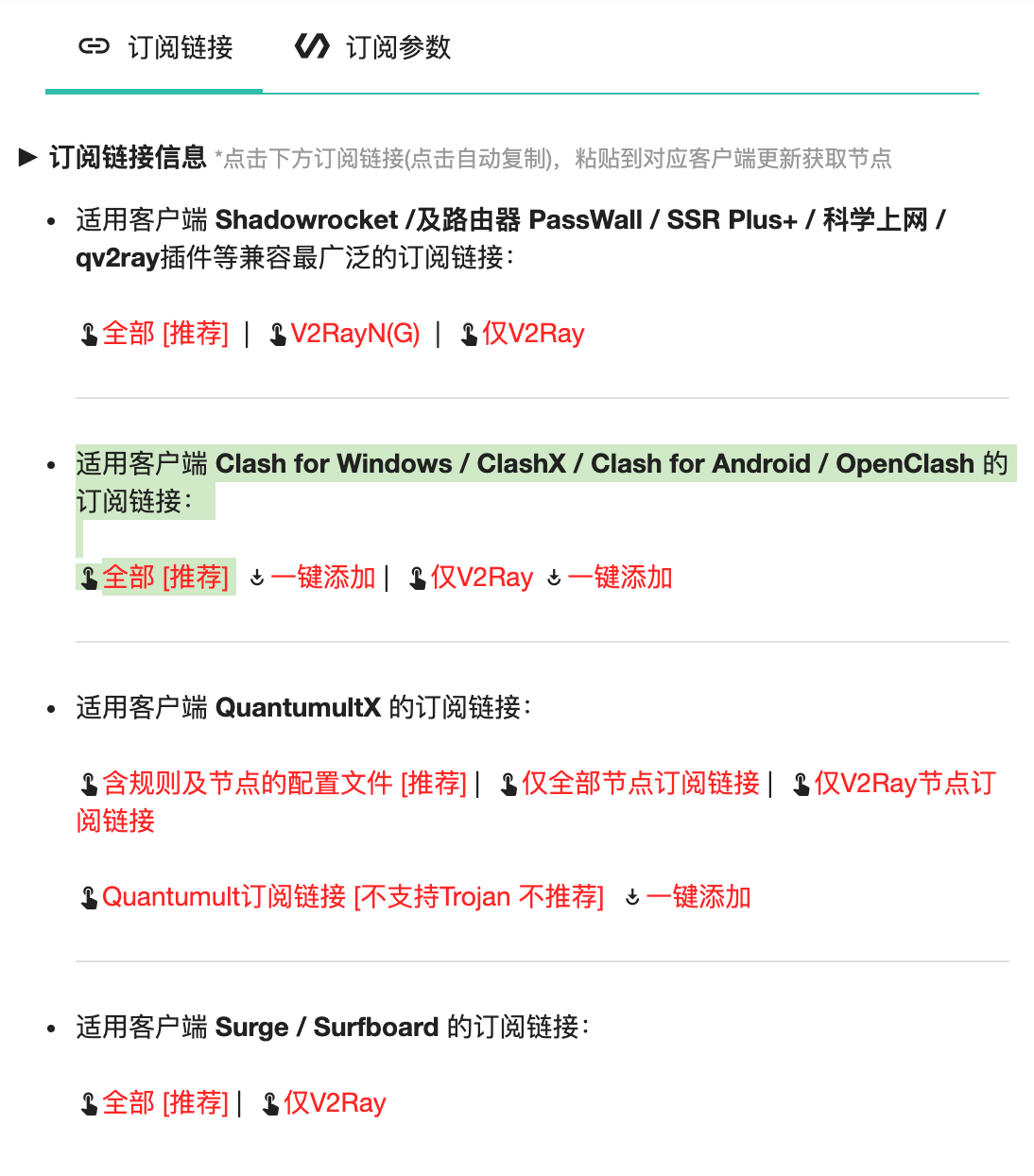
Then follow these steps:
- Open 小盒精灵 on the big-screen device and follow the on-screen instructions to set it as the system's default input method.
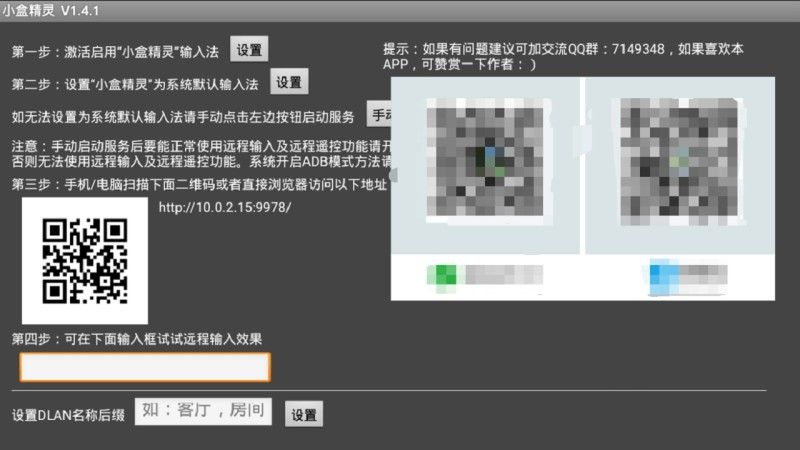
- Make sure the big-screen device and your phone or computer are connected to the same Wi-Fi network.
- Scan the QR code shown on the TV screen, or enter the displayed IP address in a browser. This opens a remote input page and lets your phone act as a keyboard for the TV device.
- Open Clash on the big-screen device.
- Tap Profiles (or Configuration), then New Profile, then Import from URL.
- Enter any profile name you like.
- Use 小盒精灵 to paste the subscription URL, then tap the save button in the top-right corner.
- After saving, tap the newly added profile once more so the small circle in front of it becomes solid. That marks it as the active configuration.
- Return to the Clash home screen and tap Start.
- When the system asks whether to allow the connection, choose Always allow.
- Once Clash is running, open Proxy and select a node under the Proxy group.
At that point, the proxy should be active.
Launch SmartTubeNext
Now open SmartTubeNext on the big-screen device.
- If it shows a Google sign-in code normally, the connection is working and YouTube browsing should be available.
- If you get a network error, go back to Clash and switch to another node.
Sign in with your Google account
You can already browse YouTube without signing in, but if you want personalized recommendations, subscriptions, likes, and similar account-based features, you still need to link your Google account in SmartTubeNext.
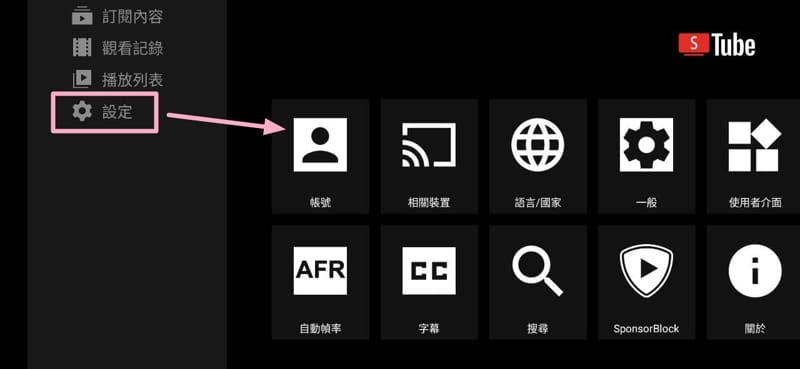
- Open the sidebar in SmartTubeNext.
- Go to Settings.
- Open Accounts.
- On the right side, choose Add account.
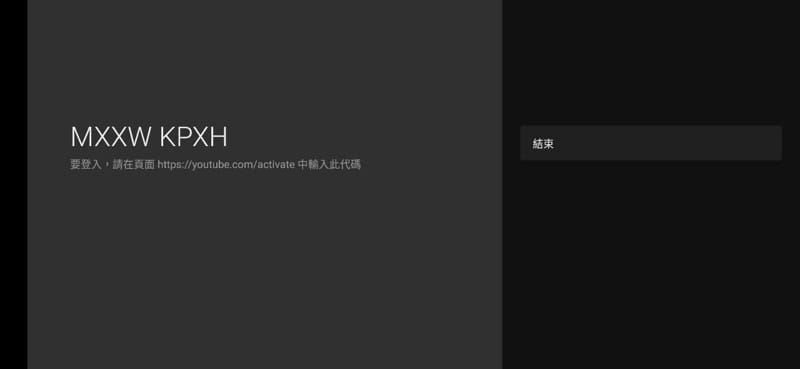
- A sign-in code will appear on the screen.
- On your phone or computer, open
https://www.youtube.com/activate. - Enter the code shown on the TV screen to complete the login.
Once that is done, SmartTubeNext can use your YouTube account just like a native TV app, without requiring Google services on the device itself.