Why a reference manager becomes necessary
For anyone doing serious academic work, reading papers is a daily routine. But each paper usually comes with the same repetitive process: searching for it, downloading it, opening it, and then trying to keep track of it afterward. After enough reading, the real problem appears when you want to revisit something from a few weeks ago and realize your computer is full of folders and PDFs, yet the one paper you need is nowhere to be found.
That is exactly where a reference manager helps. Instead of leaving hundreds or thousands of papers scattered across directories, you can organize them in one place and retrieve what you need quickly when you are writing.
Why use Mendeley
Mendeley is useful because it combines paper storage, metadata management, and bibliography handling in one tool. The recommendation here is to use it mainly as a local paper library rather than relying heavily on its cloud features.
Which Mendeley version to install
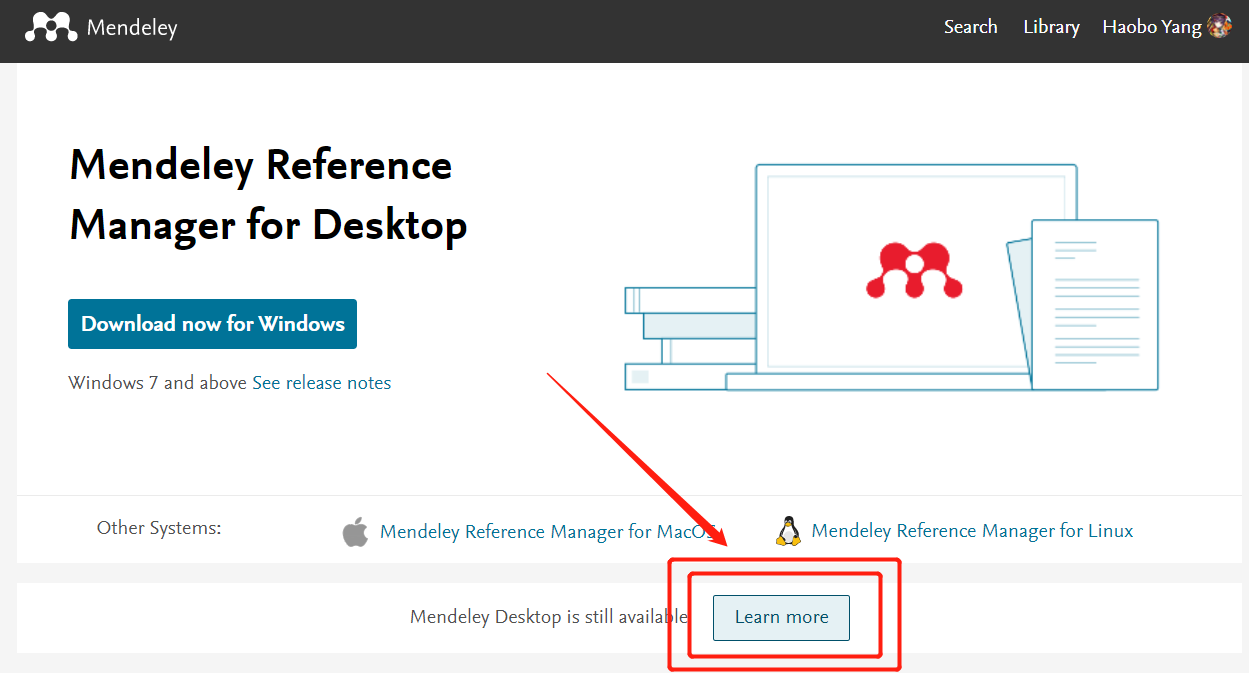
Mendeley currently has two versions. The version shown on the official site is Mendeley Manager, but it is not a pleasant tool to work with in practice. A better choice is Mendeley Desktop, which is more suitable for building and managing a local paper repository. If needed, you can still enable cloud synchronization later for cross-platform use.
Basic setup and interface
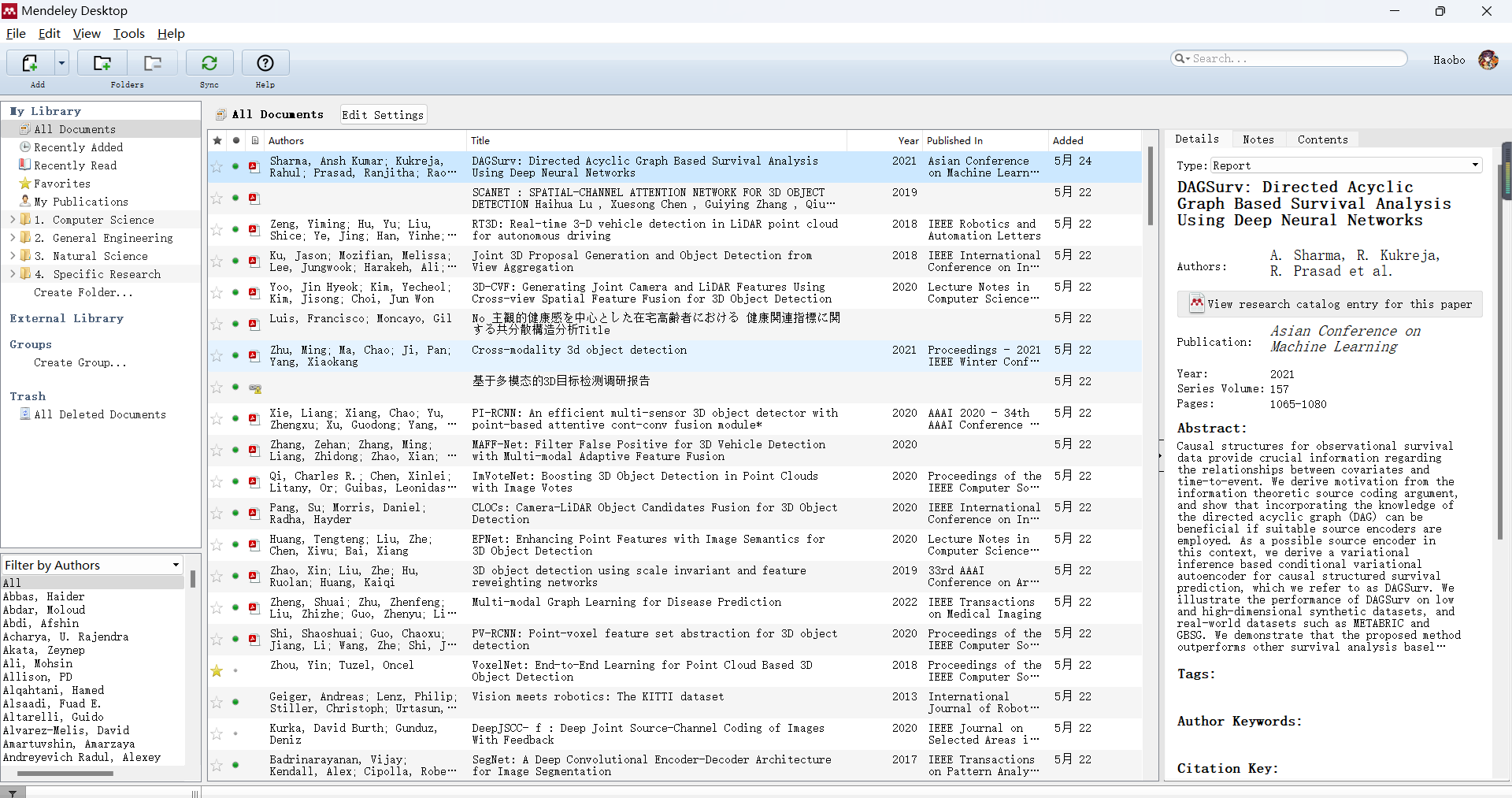
Before getting into the advanced features, it helps to get familiar with the layout of the software and then configure the storage location properly.
Interface overview
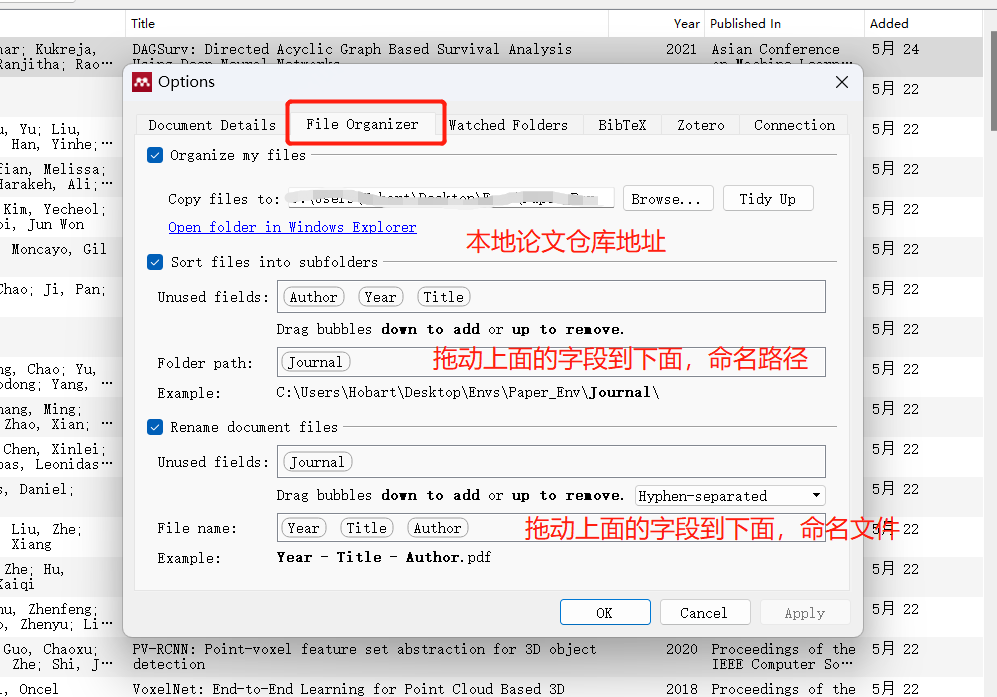
Key step: set up a local library folder
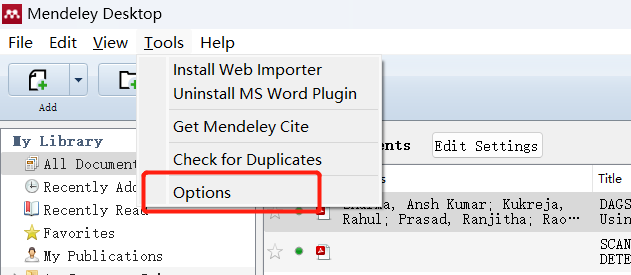
This is one of the most important parts of using Mendeley well. Instead of letting files pile up in random places, configure a dedicated local repository for your papers. Once that is in place, Mendeley can manage your documents in a centralized and much cleaner way.
Cloud sync: available, but not the first choice
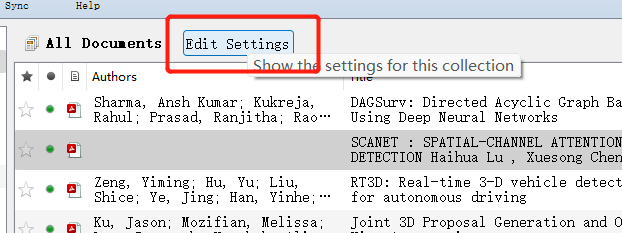
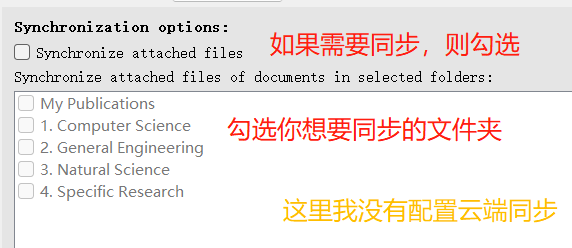
Cloud synchronization can be enabled if you want access across multiple devices.
That said, it is not especially recommended here for two reasons:
- Mendeley provides limited storage space.
- For many users, cloud sync is simply unnecessary if the main goal is local organization.
If you do need online syncing, a third-party cloud workflow can also be explored.
Chinese interface options
If you want a Chinese-language version of Mendeley, one approach is to download an unofficial portable Chinese build. At the moment, a separate localization patch is not available here.
The most useful Mendeley features
Once the library is set up, several functions become especially practical in day-to-day paper management.
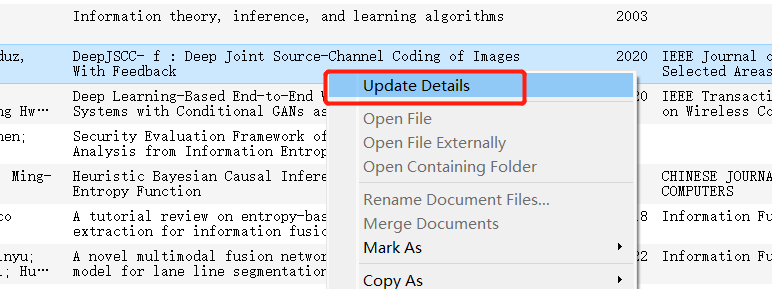
Best feature: fetch and update paper metadata
This is arguably the most convenient function in Mendeley. It can look up and fill in bibliographic information for a paper with one click, which saves a lot of manual editing.
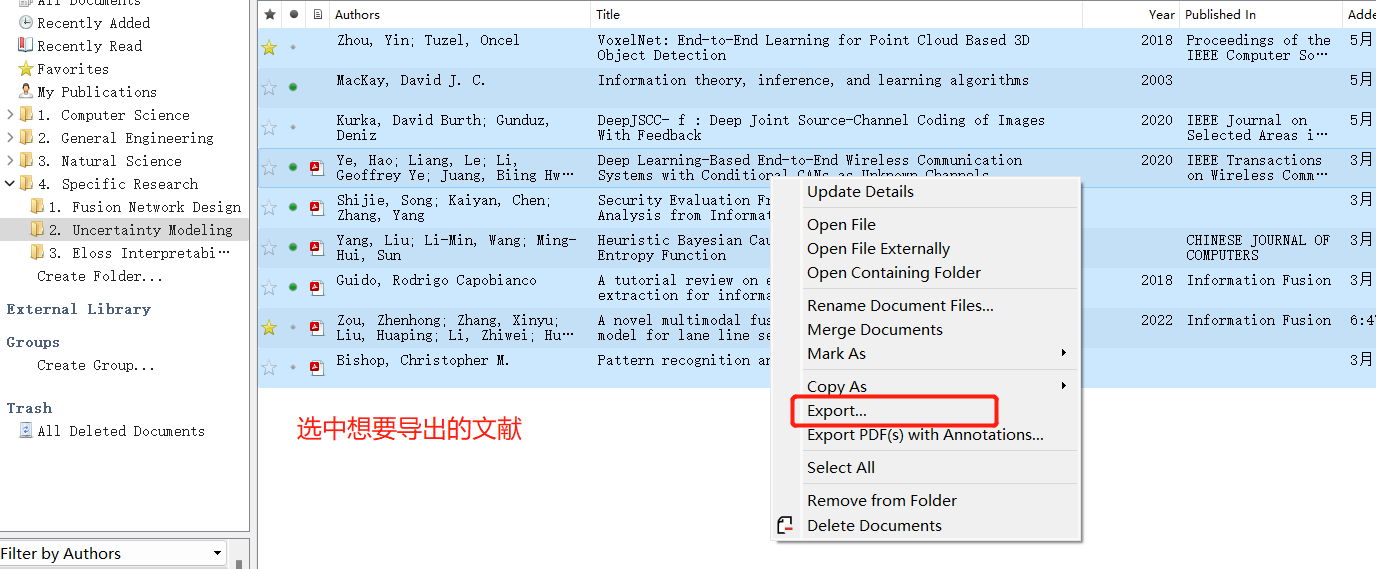
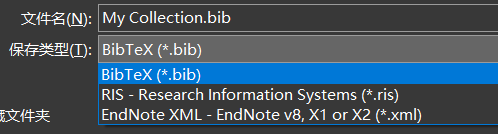
Export a reference list
Mendeley also lets you export your literature list when needed, which is useful for sharing, backup, or working with other tools.
Import papers directly from the browser
A very convenient workflow is importing papers into your local library directly from the browser. For this, you need the Mendeley Web Importer extension.
- Edge: https://microsoftedge.microsoft.com/addons/detail/mendeley-web-importer/mbcgpelmjnpfbdnkbebdlfjmeckpnhha
- Chrome (requires access to the external web): https://chrome.google.com/webstore/detail/mendeley-web-importer/dagcmkpagjlhakfdhnbomgmjdpkdklff
With the extension installed, papers can be saved into Mendeley with much less manual work.
Watch a folder automatically
This is another practical feature that many people overlook.
There are two main ways to import papers into Mendeley:
- Open the software and click the import button manually.
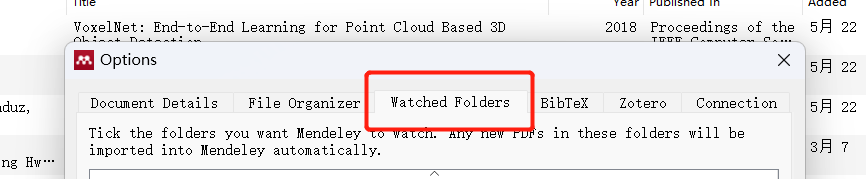
- Set up a watched folder.
The watched-folder method works differently from the usual habit of importing files one by one, but it is extremely handy. Once a folder is being monitored, any file dropped into it will be scanned by Mendeley, then copied, renamed, and moved into the managed literature directory for centralized organization.
If that matches your workflow, it can make collecting papers much smoother.